Product Recognition | |
|---|
Certification Number | ZC10-19016363 |
|---|
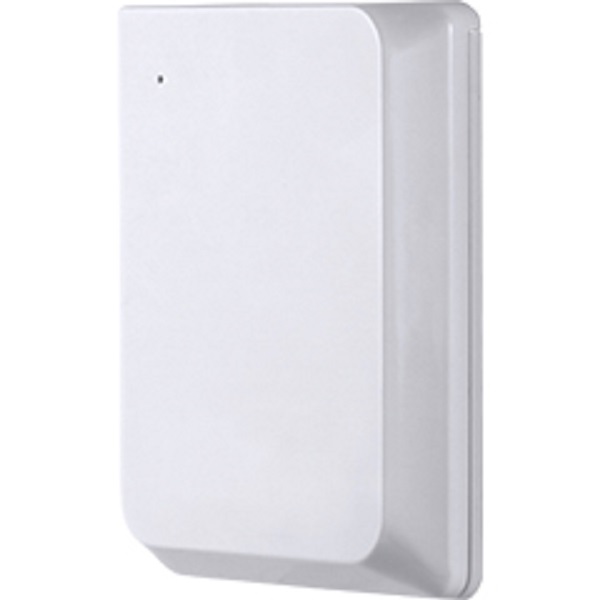
Name | Slim Smart Door/Window Sensor |
|---|
Short Description | Whether you’re coming or going, your home is ready when you are with the Z-Wave Plus Slim Smart Door/Window Sensor. |
|---|
Long Description | By simply opening or closing your door or window, the sensor uses Z-Wave technology to wirelessly trigger scenes throughout your home. From your mobile device, you’re able to schedule lights to turn on as soon as you walk in and be notified of activity while you’re away. The sensor is discreetly designed to blend subtly into the frame of the door, adding the convenience of the Smart Door/Window Sensor to your home without distracting from your household decor. |
|---|
Brand | Jasco Products Company |
|---|
Product Identifier | 43973/ZW6305 |
|---|
OEM Version | HW: 255 FW: 5.55 |
|---|
Hardware Platform | ZM5202 |
|---|
Z-Wave Version | 6.81.01 |
|---|
Library Type | SLAVE_ENHANCED_232 |
|---|
Device Type | Notification Sensor |
|---|
Role Type | ROLE_TYPE_SLAVE_SLEEPING_REPORTING |
|---|
Manufacturer ID | 0x0063 |
|---|
Product Type ID | 0x4953 |
|---|
Product ID | 0x3235 |
|---|
User Icon | 0x0C06 |
|---|
Installer Icon | 0x0C06 |
|---|
Frequency Plans | US: 916.00MHz, 908.40MHz |
|---|
Categories | Sensors |
|---|
Countries / Regions | United States of America |
|---|
Supported Command Classes | Identifier | Name | Key | Version |
|---|
COMMAND_CLASS_CONFIGURATION_V4 | Configuration V4 | 0x70 | 4 | COMMAND_CLASS_FIRMWARE_UPDATE_MD_V4 | Firmware Update Meta-Data V4 | 0x7A | 4 | COMMAND_CLASS_POWERLEVEL | Powerlevel | 0x73 | 1 | COMMAND_CLASS_BATTERY | Battery | 0x80 | 1 | COMMAND_CLASS_TRANSPORT_SERVICE_V2 | Transport Service V2 | 0x55 | 2 | COMMAND_CLASS_WAKE_UP_V2 | Wake Up V2 | 0x84 | 2 | COMMAND_CLASS_DEVICE_RESET_LOCALLY | Device Reset Locally | 0x5A | 1 | COMMAND_CLASS_ZWAVEPLUS_INFO_V2 | Z-Wave Plus Info V2 | 0x5E | 2 | COMMAND_CLASS_ASSOCIATION_V2 | Association V2 | 0x85 | 2 | COMMAND_CLASS_ASSOCIATION_GRP_INFO | Association Group Info | 0x59 | 1 | COMMAND_CLASS_NOTIFICATION_V8 | Notification V8 | 0x71 | 8 | COMMAND_CLASS_SECURITY_2 | Security S2 | 0x9F | 1 | COMMAND_CLASS_VERSION_V3 | Version V3 | 0x86 | 3 | COMMAND_CLASS_SUPERVISION | Supervision | 0x6C | 1 | COMMAND_CLASS_MANUFACTURER_SPECIFIC_V2 | Manufacturer Specific V2 | 0x72 | 2 |
|
|---|
S2 Classes | S2_UNAUTHENTICATED, S2_AUTHENTICATED |
|---|
Documents | Category | Description | File |
|---|
Manual_Primary_Lang | Product or Owner's Manual | |
|
|---|
Features | Feature | Values |
|---|
Battery Type | | Supported Notification Types | | Firmware Updatable | Value |
|---|
Updatable by Consumer by RF |
| Battery Quantity | | Sensors | Value |
|---|
Open/Closed (Binary) |
|
|
|---|
Association Groups | Group Number | Maximum Nodes Supported | End Point ID | Description |
|---|
1 | 5 | 0 | Z-Wave Plus Lifeline |
|
|---|
Configuration Parameters | Parameter Number | Name | Description | Format | Size | Min Value | Max Value | Default Value | Parameter Values | Flag Advanced |
|---|
23 | Battery Report Interval | This parameter allows you to choose how often the battery level is reported. | 0 | 2 | 5 | 1440 | 1440 |
Warning: Undefined variable $field_object in /nas/content/live/zwaprodcatalog/wp-content/themes/hello-elementor-child/single-z-wave-product.php on line 98
From | To | Description |
|---|
5 | 60 | 5-60 Minutes | 360 | 360 | 6 Hours | 720 | 720 | 12 Hours | 1440 | 1440 | (Default) Daily |
| | 53 | Tamper LED Control | This parameter allows you to choose how often the LED will flash once the device/battery cover is tampered with. | 0 | 1 | 1 | 2 | 1 | From | To | Description |
|---|
2 | 2 | Flashes once, on initial tamper only | 1 | 1 | (Default) Continuous Flash |
| | 1 | Reverse open/close detection | This parameter allows you to reverse the detection values of the device. | 0 | 1 | 0 | 1 | 0 | From | To | Description |
|---|
0 | 0 | (Default) Disabled | 1 | 1 | Reverse event (Open 16, Close 17) |
| Yes |
|
|---|
Texts | ID | Description | Value |
|---|
1 | Inclusion | Automatic mode
1. Follow the instructions for your Z-Wave certified controller to add the sensor in the Z-Wave network.
2. Once the controller is ready to add your sensor, slide the battery door down and remove (if not mounted to door or window).
3. Remove the plastic battery tab. This activates the sensor and starts the auto-add process. The red LED will begin to flash
quickly as it searches for a network. The sensor will attempt to search for a network for two minutes, after which, it will time out.
4. The red LED will continue to flash quickly after it locates a network – the controller’s app will indicate if it has discovered the sensor. If prompted by the controller to enter the S2 security code, refer to the QR code/security number on the back of the box, or the QR code label on the product. Enter the 5-digit code.
5. The red LED will activate for 3 seconds to confirm the sensor has been added in the network.
Manual mode
1. Follow the instructions for your Z-Wave certified controller to add the sensor in the Z-Wave network.
2. Once the controller is ready to add your sensor, ensure battery is installed with the correct polarity in the sensor and the battery tab has been removed.
3. Press and release the programming button. This starts the manual add process. The red LED will begin to flash quickly as it begins the add process.
4. The red LED will activate for 3 seconds to confirm the sensor has been added in the network.
5. The controller’s app will indicate if it has discovered the sensor. If prompted by the controller to enter the S2 security code, refer to the QR code/security number on the back of the box, or the QR code label on the product. Enter the 5-digit code. | 5 | Factory Reset | 1. Press the programming button 10 times within 6 seconds (interval between presses of the button cannot be longer than 1 second).
2. The red LED will activate for 2 seconds, followed by 3 quick flashes.
- Please use this procedure only when the network primary controller is missing or otherwise inoperable. | 2 | Exclusion | 1. Follow the instructions for your Z-Wave certified controller to remove the sensor from the Z-Wave network.
2. Once the controller is ready to remove your sensor, press and release the programming button on the sensor 1 time to remove it from the network.
3. The red LED will blink 5 times to indicate it has been removed. |
|
|---|
Supported Notification Types | Notification Type | Event / State |
|---|
Home Security | (Refer to parameters): State idle |
|
|---|
Supported Multilevel Sensors | Multilevel Sensor Type |
|---|
General purpose |
|
|---|
Supports NWI | Yes |
|---|
Supports Explorer Frames | Yes |
|---|
Supports SmartStart | Yes |
|---|
Radio Range Z-Wave (m) | 40 |
|---|