Product Recognition | |
|---|
Certification Number | ZC10-16095216 |
|---|
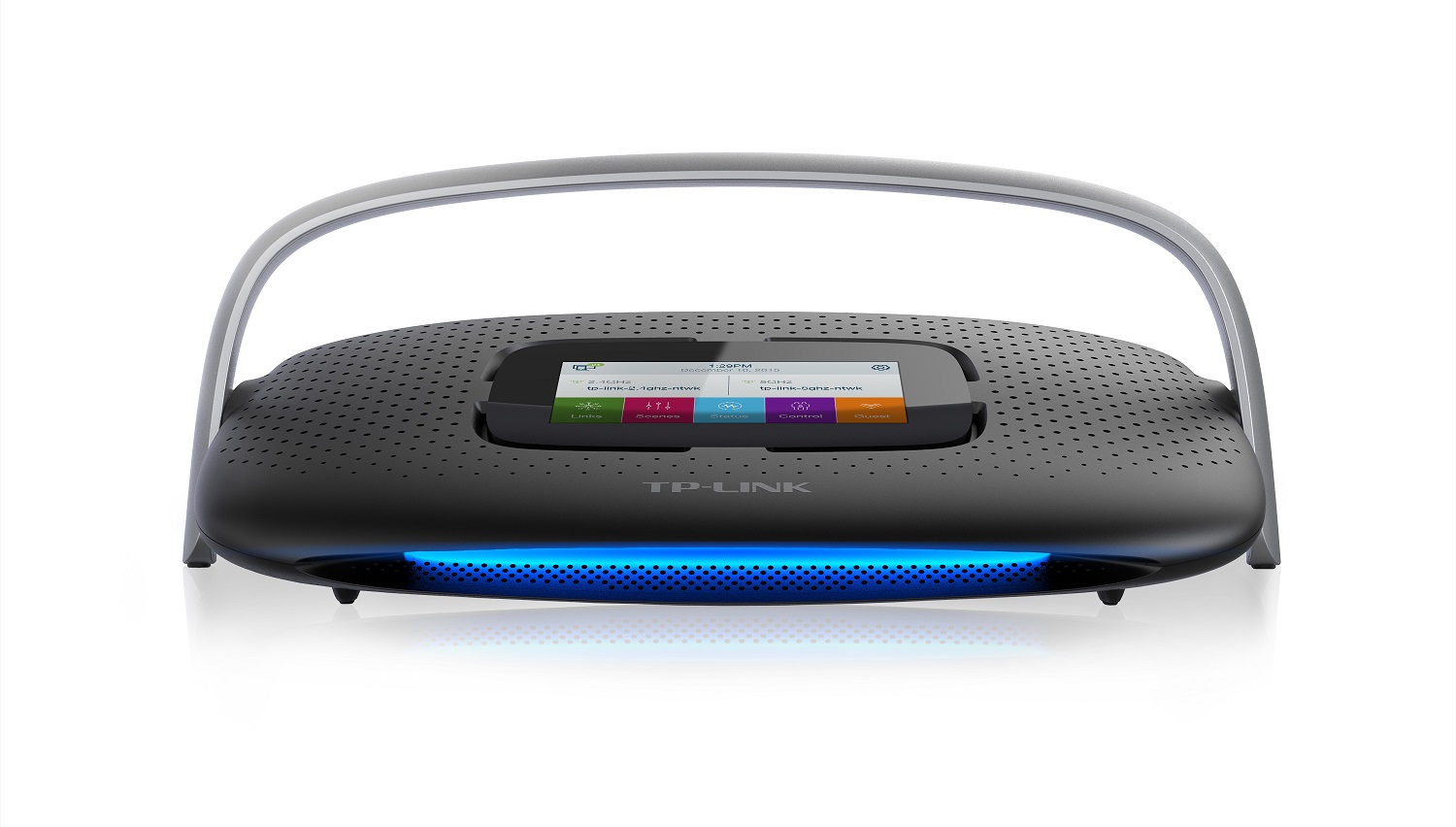
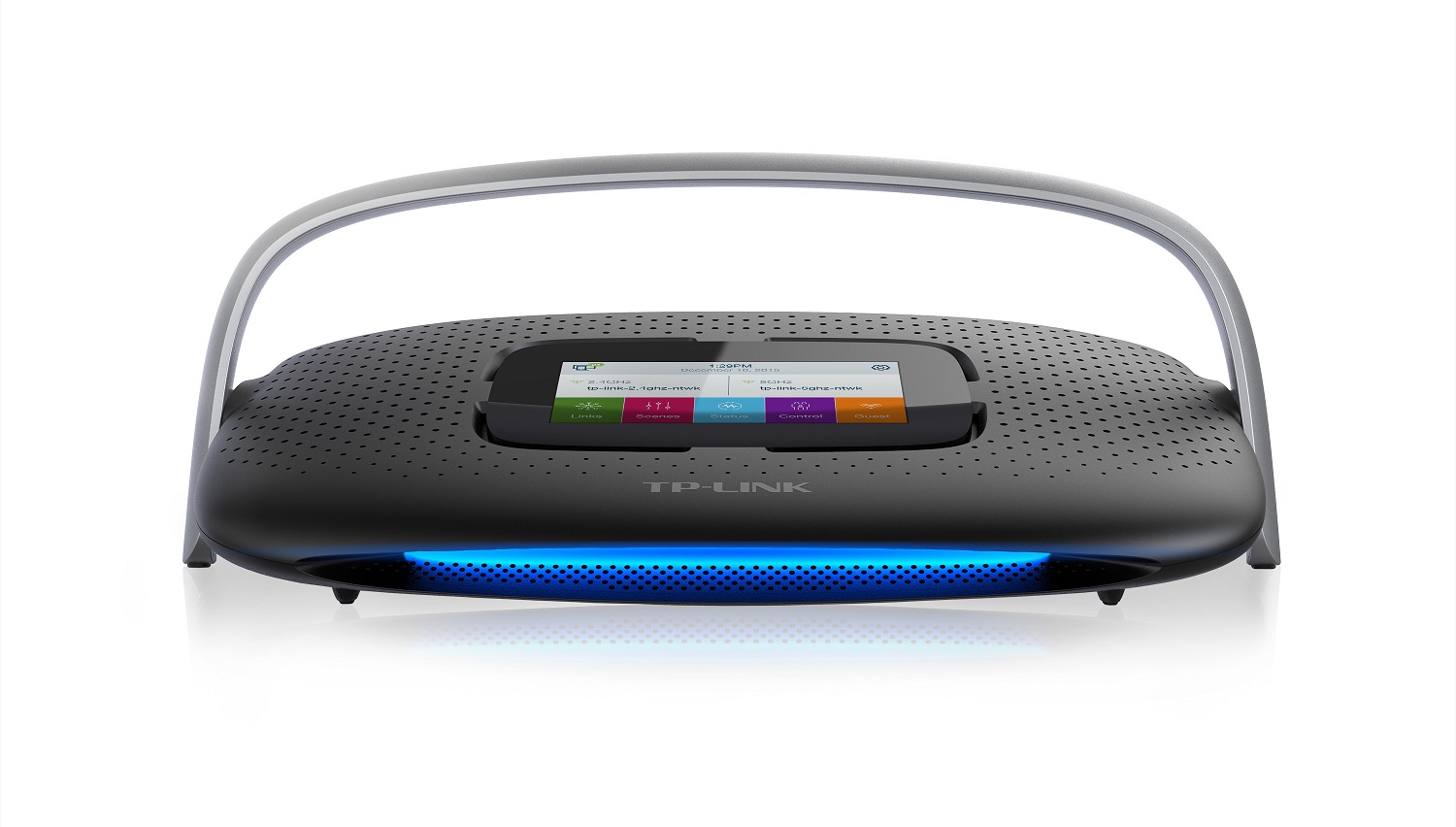
Name | TP-LINK Smart Home Router |
|---|
Short Description | TP-LINK Smart Home Router is an all-in-one router and
Internet of Things (IoT) Hub. |
|---|
Long Description | TP-LINK Smart Home Router is an all-in-one router and
Internet of Things (IoT).
It can work as the central intelligence hub for devices throughout the home, enabling consumers to control their devices and automate functions tailored to their preferences.
Key Features:
Connect your smart home devices and have them work together to enhance your quality of life
Four Gigabit Ethernet Ports for lightning-fast wired connections
Advanced security encryption to protect data
Supports 802.11ac and backwards-compatible with 802.11a/b/g/n |
|---|
Brand | TP-LINK Smart Home Router |
|---|
Product Identifier | Smart Home Router |
|---|
OEM Version | HW: 0 FW: 4.32:01.24:01.00:01.00 |
|---|
Hardware Platform | ZM5101 |
|---|
Z-Wave Version | 6.51.07 |
|---|
Library Type | CONTROLLER_STATIC |
|---|
Device Type | Gateway |
|---|
Role Type | ROLE_TYPE_CONTROLLER_CENTRAL_STATIC |
|---|
Manufacturer ID | 0x0283 |
|---|
Product Type ID | 0x0001 |
|---|
Product ID | 0x0001 |
|---|
User Icon | 0500 |
|---|
Installer Icon | 0500 |
|---|
Frequency Plans | US: 916.00MHz, 908.40MHz |
|---|
Categories | All Controllers, Gateway Controller |
|---|
Countries / Regions | United States of America |
|---|
Controlled Command Classes | Identifier | Name | Key | Version |
|---|
COMMAND_CLASS_SWITCH_MULTILEVEL | Switch Multilevel | 0x26 | 1 | COMMAND_CLASS_COLOR_SWITCH | Color Switch V1 | 0x33 | 0 | COMMAND_CLASS_ASSOCIATION_GROUP_INFORMATION | Association Group Information V1 | 0x59 | 0 | COMMAND_CLASS_DOOR_LOCK | Door Lock | 0x62 | 1 | COMMAND_CLASS_NO_OPERATION | No Operation | 0x00 | 1 | COMMAND_CLASS_THERMOSTAT_FAN_MODE | Thermostat Fan Mode | 0x44 | 1 | COMMAND_CLASS_MULTI_CHANNEL_ASSOCIATION_V3 | Multi-Channel Association V3 | 0x8E | 3 | COMMAND_CLASS_THERMOSTAT_OPERATING_STATE | Thermostat Operating State | 0x42 | 1 | COMMAND_CLASS_THERMOSTAT_MODE | Thermostat Mode | 0x40 | 1 | COMMAND_CLASS_THERMOSTAT_FAN_STATE | Thermostat Fan State | 0x45 | 1 | COMMAND_CLASS_SWITCH_BINARY | Switch Binary | 0x25 | 1 | COMMAND_CLASS_BASIC | Basic | 0x20 | 1 | COMMAND_CLASS_CRC_16_ENCAP | CRC16 Encapsulation | 0x56 | 1 | COMMAND_CLASS_SECURITY | Security S0 | 0x98 | 1 | COMMAND_CLASS_SENSOR_BINARY_V2 | Sensor Binary V2 | 0x30 | 2 | COMMAND_CLASS_NOTIFICATION_V3 | Notification V3 | 0x71 | 3 | COMMAND_CLASS_WAKE_UP_V2 | Wake Up V2 | 0x84 | 2 | COMMAND_CLASS_ASSOCIATION_V2 | Association V2 | 0x85 | 2 | COMMAND_CLASS_MULTI_CHANNEL_V4 | Multi-Channel V4 | 0x60 | 4 | COMMAND_CLASS_THERMOSTAT_SETPOINT | Thermostat Setpoint | 0x43 | 1 |
|
|---|
Documents | Category | Description | File |
|---|
Manual_Primary_Lang | Product or Owner's Manual | |
|
|---|
Features | Feature | Values |
|---|
Communications Protocol | | Communications Connections | Value |
|---|
Ethernet (Wired) | Ethernet (Wireless/WiFi) | USB (Universal Serial Bus) | Manufacturer Proprietary |
|
|
|---|
Association Groups | Group Number | Maximum Nodes Supported | End Point ID | Description |
|---|
1 | 1 | 0 | Z-Wave Plus Lifeline |
|
|---|
Texts | ID | Description | Value |
|---|
3 | Learn Mode (adding another controller) | Smart Home Router has the build-in dedicated Z-Wave controller.
SR20 Z-Wave controller can be added to another network, but it is not the recommended use and is only for advanced users.
Note that this will cause all Z-Wave devices connected to the SR20 controller to be disconnected.
To add the SR20 to another Z-Wave network, you must first select to enable Inclusion mode on the target Z-Wave controller. Then, from the display of the SR20, select the ""Learn Mode Set"" button.
Refer the relevant support information from the
online support section of the www.tp-link.com website
or download the latest TP-LINK Kasa App from
Play Store for Android devices or Apple Store for
iOS devices | 24 | Controller Exclusion | You can remove an existing Z-Wave device from your smart home network using either the built-in touch screen display of the SR20, or from the Kasa App (iOS or Android).
To remove a Z-Wave device that was previously added to your smart home network, go to the devices control page and select the Exclusion button. This will provide an option to Remove this device. Once the Remove option is confirmed, the Z-Wave exclusion process will start. Follow the device’s instructions to complete the removal.
Once completed, the display will indicate that the device is no longer installed.
Refer the relevant support information from the
online support section of the www.tp-link.com website
or download the latest TP-LINK Kasa App from
Play Store for Android devices or Apple Store for
iOS devices | 5 | Factory Reset | The SR20 can be reset to factory defaults through a menu option in the built-in touch screen display. Once confirmed, the SR20 will transmit a Device Reset Locally Notification to all connected devices. The SR20 will then clear all network and user settings and reboot into a factory.
Note:
If this controller is the primary controller for your network, resetting it will result in the nodes in your network being orphaned and it will be necessary after the reset to exclude and re-include all of the nodes in the network. If this controller is being used as a secondary controller in the network, use this procedure to reset this controller only in the event that the network primary controller is missing or otherwise inoperable
Refer the relevant support information from the
online support section of the www.tp-link.com website
or download the latest TP-LINK Kasa App from
Play Store for Android devices or Apple Store for
iOS devices | 23 | Controller Inclusion | You can add a new Z-Wave device to your Kasa smart home network using either the built in touch screen display of the SR20, or from the Kasa App (iOS or Android).
To add a new device, simply press the + sign on the device page. This will start the Z-Wave Inclusion process and begin searching for any new devices. Follow the specific inclusion instructions for the device(s) you wish to add to your network. The SR20 will then automatically identify and add these devices your into smart home network.
Once complete, these new devices will be available from within your Kasa control screens.
Refer the relevant support information from the
online support section of the www.tp-link.com website
or download the latest TP-LINK Kasa App from
Play Store for Android devices or Apple Store for
iOS devices |
|
|---|
Supports NWI | Yes |
|---|
Supports Explorer Frames | Yes |
|---|
Radio Range Z-Wave (m) | 40 |
|---|