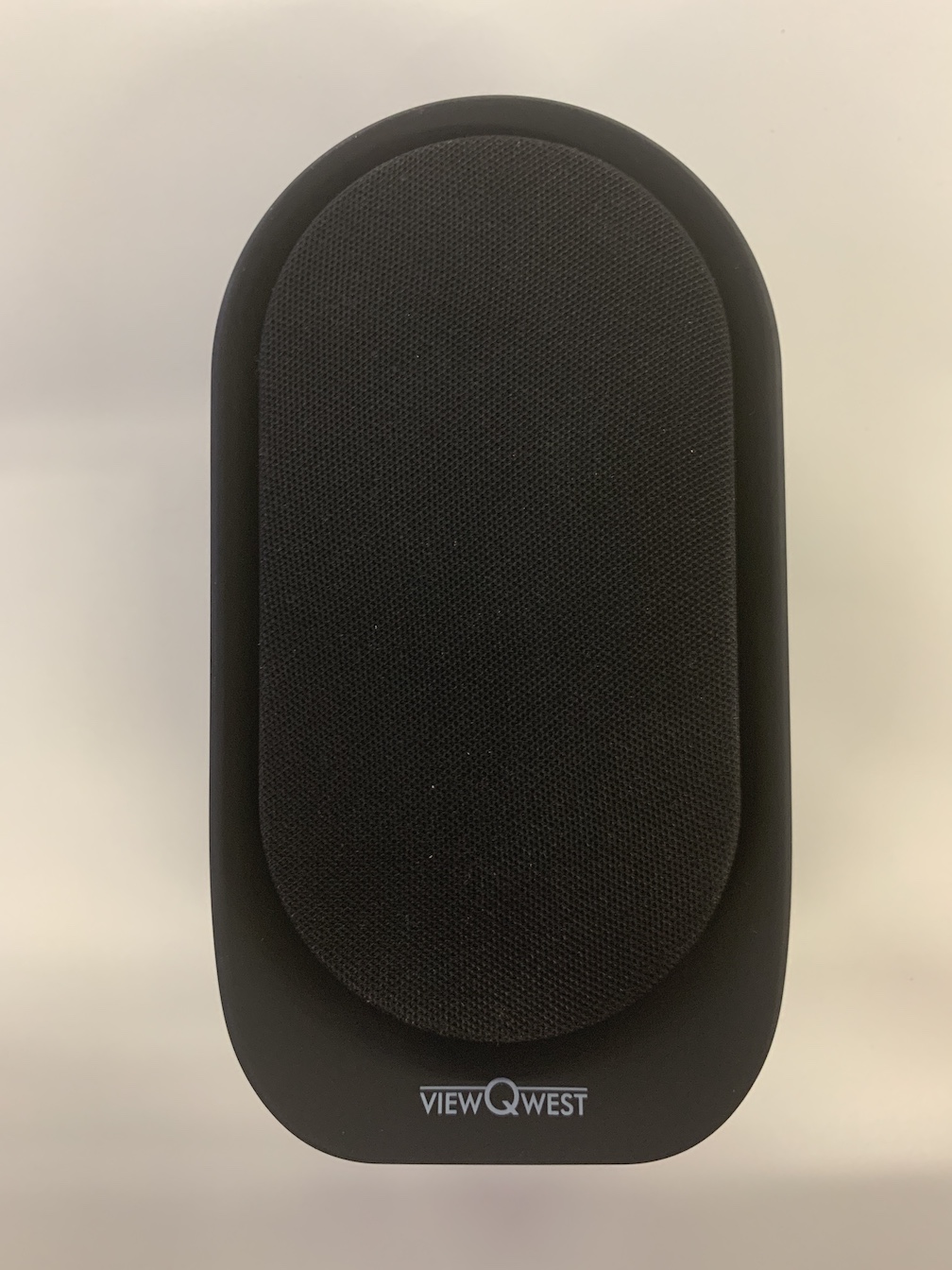
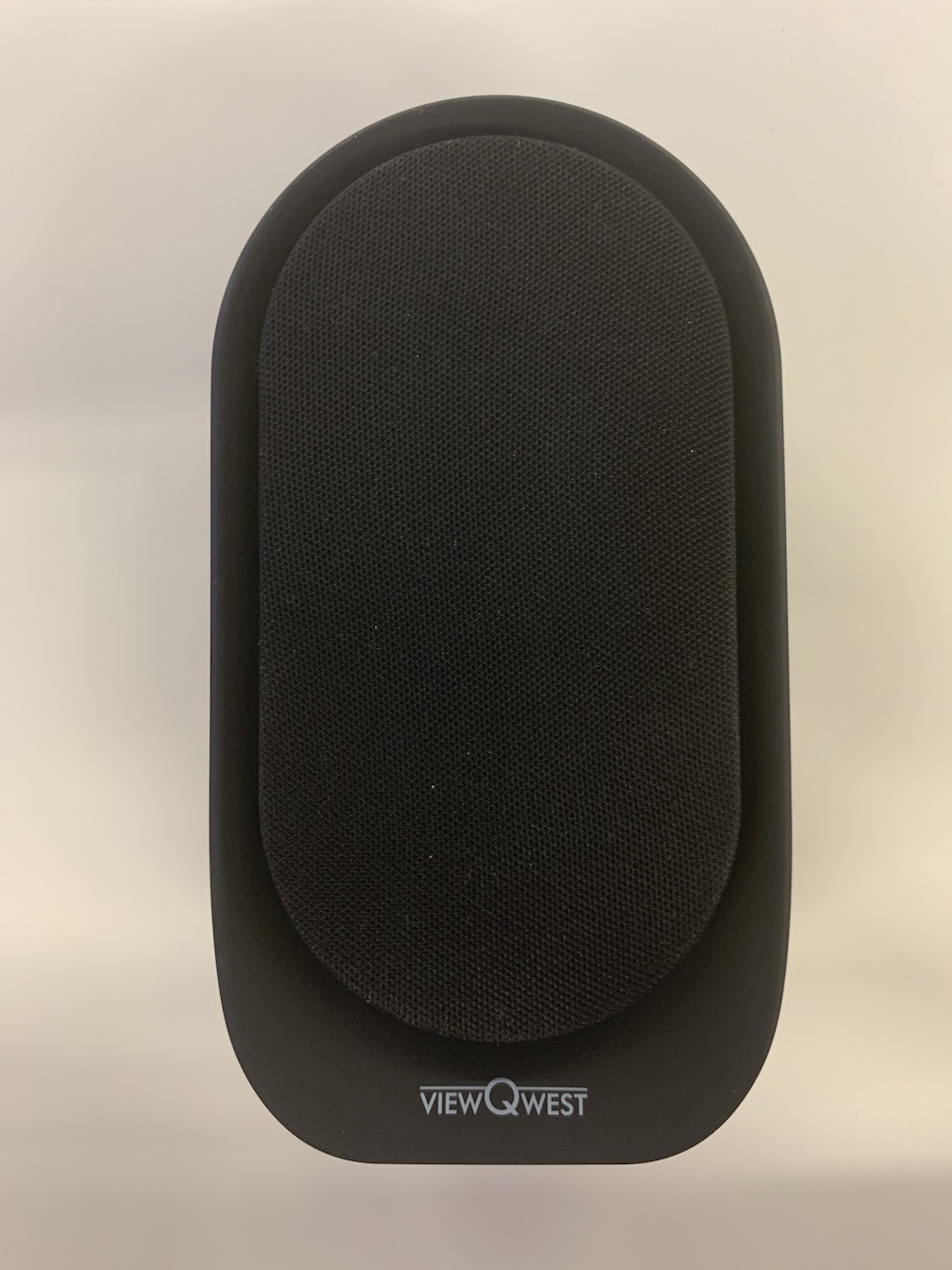
Product Recognition | |
|---|
Certification Number | ZC10-21097053 |
|---|
Name | Vesta Shield |
|---|
Short Description | Vesta is a round the clock smart monitoring solution to protect the
people and things that matter the most and help you live life
at home or manage your business, better. |
|---|
Long Description | Vesta is a smart monitoring solution comprising of the Vesta Hub, wireless sensors and a smart plug. Vesta Hub seamlessly connects with the sensors to provide wholesome security experience and peace of mind. Current Vesta ecosystem can monitor home intrusion, room temperature & illuminance level. All the events and notifications are viewed via the Vesta mobile app (Both Android and iOS). Also, the App could notify emergency contacts about the unmonitored events and even make calls notifying
on critical alerts which are triggered by the sensors. |
|---|
Brand | Viewqwest Vesta |
|---|
Product Identifier | SVHSZWB1 |
|---|
Product Line | Shield |
|---|
OEM Version | HW: 1 FW: 1.02:07.13:02.03 |
|---|
Hardware Platform | ZM5101 |
|---|
Z-Wave Version | 6.82.01 |
|---|
Library Type | CONTROLLER_BRIDGE |
|---|
Device Type | Gateway |
|---|
Role Type | ROLE_TYPE_CONTROLLER_CENTRAL_STATIC |
|---|
Manufacturer ID | 0x0367 |
|---|
Product Type ID | 0x0001 |
|---|
Product ID | 0x0001 |
|---|
User Icon | 0x0500 |
|---|
Installer Icon | 0x0500 |
|---|
Frequency Plans | ANZ: 919.80MHz, 921.40MHz |
|---|
Categories | Sensors, All Lighting Devices, On/Off Switches/Devices, Security Systems |
|---|
Countries / Regions | Malaysia |
|---|
Supported Command Classes | Identifier | Name | Key | Version |
|---|
COMMAND_CLASS_NETWORK_MANAGEMENT_INSTALLATION_MAINTENANCE_V2 | Network Management Installation and Maintenance V2 | 0x67 | 2 | COMMAND_CLASS_POWERLEVEL | Powerlevel | 0x73 | 1 | COMMAND_CLASS_INCLUSION_CONTROLLER | Inclusion Controller | 0x74 | 1 | COMMAND_CLASS_ASSOCIATION_V3 | Association V3 | | 0 | COMMAND_CLASS_MULTI_CHANNEL_ASSOCIATION_V4 | Multi-Channel Association V4 | | 0 | COMMAND_CLASS_INDICATOR_V3 | Indicator V3 | 0x87 | 3 | COMMAND_CLASS_APPLICATION_STATUS | Application Status | 0x22 | 1 | COMMAND_CLASS_TIME | Time | 0x8A | 1 | COMMAND_CLASS_CRC_16_ENCAP | CRC16 Encapsulation | 0x56 | 1 | COMMAND_CLASS_SECURITY | Security S0 | 0x98 | 1 | COMMAND_CLASS_TRANSPORT_SERVICE_V2 | Transport Service V2 | 0x55 | 2 | COMMAND_CLASS_DEVICE_RESET_LOCALLY | Device Reset Locally | 0x5A | 1 | COMMAND_CLASS_ZWAVEPLUS_INFO_V2 | Z-Wave Plus Info V2 | 0x5E | 2 | COMMAND_CLASS_FIRMWARE_UPDATE_MD_V5 | Firmware Update Meta-Data V5 | 0x7A | 5 | COMMAND_CLASS_ASSOCIATION_GRP_INFO_V3 | Association Group Information V3 | 0x59 | 3 | COMMAND_CLASS_NETWORK_MANAGEMENT_INCLUSION_VERSION_3 | Network Management Inclusion V3 | 0x34 | 0 | COMMAND_CLASS_NETWORK_MANAGEMENT_PROXY_V2 | Network Management Proxy V2 | 0x52 | 2 | COMMAND_CLASS_SECURITY_2 | Security S2 | 0x9F | 1 | COMMAND_CLASS_NETWORK_MANAGEMENT_BASIC_V2 | Network Management Basic V2 | 0x4D | 2 | COMMAND_CLASS_VERSION_V3 | Version V3 | 0x86 | 3 | COMMAND_CLASS_SUPERVISION | Supervision | 0x6C | 1 | COMMAND_CLASS_MANUFACTURER_SPECIFIC_V2 | Manufacturer Specific V2 | 0x72 | 2 | COMMAND_CLASS_MULTI_CMD | Multi-Command | 0x8F | 1 |
|
|---|
Controlled Command Classes | Identifier | Name | Key | Version |
|---|
COMMAND_CLASS_CONFIGURATION_V4 | Configuration V4 | 0x70 | 4 | COMMAND_CLASS_SWITCH_BINARY_V2 | Switch Binary V2 | 0x25 | 2 | COMMAND_CLASS_ASSOCIATION_V3 | Association V3 | | 0 | COMMAND_CLASS_MULTI_CHANNEL_ASSOCIATION_V4 | Multi-Channel Association V4 | | 0 | COMMAND_CLASS_ALARM | Alarm | 0x71 | 1 | COMMAND_CLASS_CRC_16_ENCAP | CRC16 Encapsulation | 0x56 | 1 | COMMAND_CLASS_SECURITY | Security S0 | 0x98 | 1 | COMMAND_CLASS_SENSOR_BINARY_V2 | Sensor Binary V2 | 0x30 | 2 | COMMAND_CLASS_WAKE_UP_V2 | Wake Up V2 | 0x84 | 2 | COMMAND_CLASS_MULTI_CHANNEL_V4 | Multi-Channel V4 | 0x60 | 4 | COMMAND_CLASS_ASSOCIATION_GRP_INFO_V3 | Association Group Information V3 | 0x59 | 3 | COMMAND_CLASS_BASIC_V2 | Basic V2 | 0x20 | 2 | COMMAND_CLASS_SECURITY_2 | Security S2 | 0x9F | 1 |
|
|---|
S2 Classes | S2_UNAUTHENTICATED, S2_AUTHENTICATED, S2_ACCESS_CONTROL |
|---|
Documents | Category | Description | File |
|---|
Manual_Primary_Lang | Product Manual | |
|
|---|
Features | Feature | Values |
|---|
Battery Quantity | | Color | | Communications Protocol | | Controller Supports Multiple Networks | | Firmware Updatable | Value |
|---|
Updatable by Consumer via Internet |
|
|
|---|
Association Groups | Group Number | Maximum Nodes Supported | End Point ID | Group Name | Profile | Description |
|---|
1 | 1 | 2 | Lifeline | 0x000A | (Lifeline) An included Controller/Secondary Controller may issue an association set command to the Vesta Lifeline with its node ID and then Vesta will send the DRL Notification via the Lifeline group |
|
|---|
Texts | ID | Description | Value |
|---|
8 | Where to find S2 DSK on product | 1] The security 2 DSK of the Vesta Hub comes with the product packaging as a card which is kept with the user manual.
2] Steps to Access DSK via the APP UI:
Step 1: Go to the Menu
Step 2: Choose Settings
Step 3: Choose Show HUB DSK | 1 | Classic Inclusion | Steps for Performing Classic device inclusion:
Step 1: Have the device to be added ready and ensure it has been reset
Step 2: Go to MENU --> DEVICE SETUP --> ADD DEVICE
Step 3: Press SCAN button
Step 4: Press the Action button on the device to be added
Step 5: Enter Partial DSK String if adding on S2 Secure mode and Submit
Step 6: For S0 and Unsecure devices press the ACTION button and add without DSK
Step 7: Choose the device from the list of Available Devices and Click ADD.
The device is added and can be renamed | 2 | Classic Exclusion | Steps for performing Classic device exclusion:
Step 1: Go to MENU --> DEVICE SETUP --> REMOVE DEVICE
Step 2: Click CONFIRM on the pop up message
Step 3: Make sure you have the device with you and press the REMOVE button and then immediately press the action button on your device
Step 4: The device will be removed from the Z-Wave network and from Vesta. This may take up to 60 secs.
Once the device is removed it will no longer be visible in the device list. | 5 | Factory Reset Procedure | Factory Reset:
Please use this procedure only when the network primary controller is missing or otherwise inoperable.
Factory reset can be performed in 2 ways:
1] Hardware Factory Reset: To reset the hub back to its factory default state, press the reset button (next to power cycle button) continuously for up to
5 seconds. You will hear a voice prompt to say the factory reset process has started. Then please allow up to 5 minutes for the whole reset process to complete.
Once the hub has been reset, you will be notified by another voice prompt at the end to indicate that the reset process has been completed.
2] Factory Reset through App:
Step 1: Go to MENU --> SETTINGS --> FACTORY RESET
Step 2: Press PROCEED in the reset confirmtion dialog box
Step 3: Wait for 4 minutes for the reset process to be completed |
|
|---|
Supports NWI | Yes |
|---|
Supports Explorer Frames | Yes |
|---|
Radio Range Z-Wave (m) | 40 |
|---|