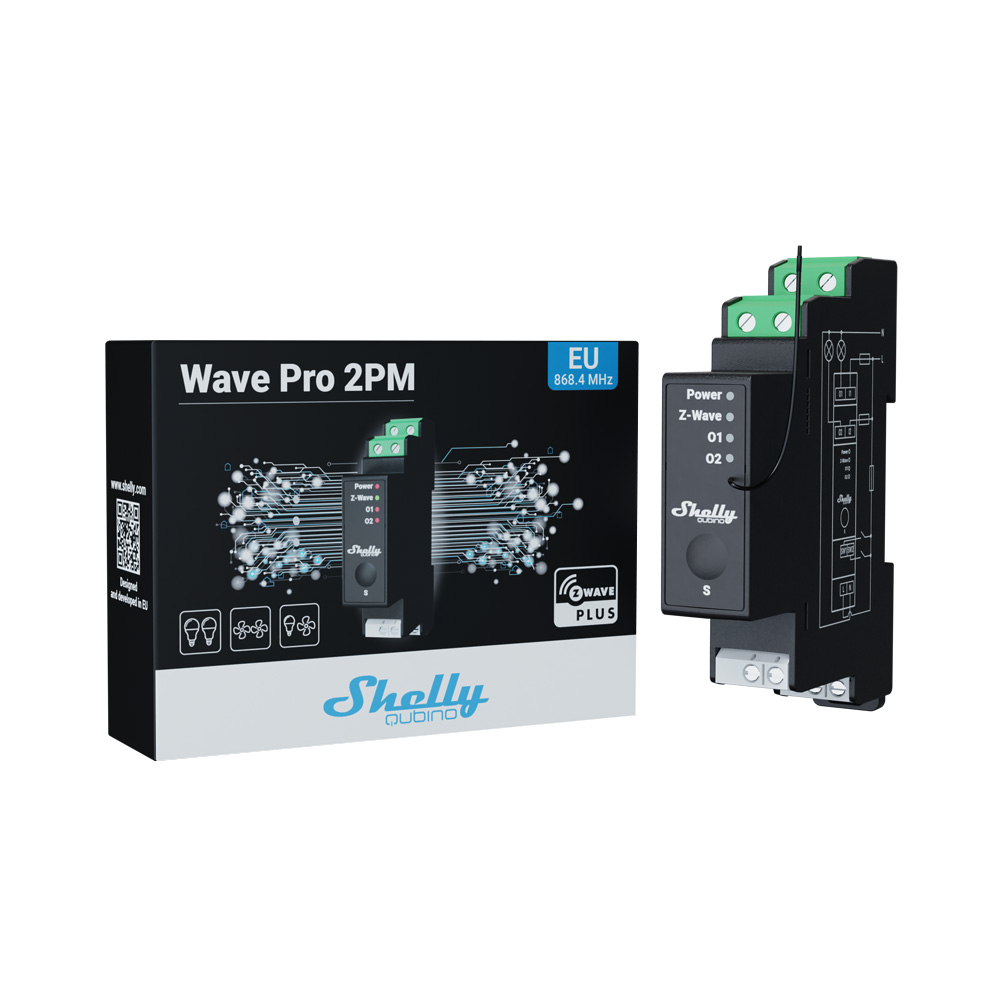
Product Recognition | |
|---|
Certification Number | ZC14-24080461 |
|---|
Name | Wave PRO 2PM |
|---|
Short Description | The Device is a DIN rail mountable 2-channel smart switch with power measurement capabilities. It controls on/off function for two independent loads (with load up to 16 A per channel, 25 A total), e.g., bulb, ceiling fan, IR heater, electrical locks, garage doors, irrigation system, etc. and it is compatible with push-buttons and switches (default). |
|---|
Long Description | The Device is a DIN rail mountable 2-channel smart switch with power measurement capabilities. It controls on/off function for two independent loads (with load up to 16 A per channel, 25 A total), e.g., bulb, ceiling fan, IR heater, electrical locks, garage doors, irrigation system, etc. and it is compatible with push-buttons and switches (default).
If the SW (SW1) is configured as a switch, each toggle of the switch will change the output O (O1) state to the opposite state - on, off, on, etc. If the SW (SW1) is configured as a push-button in the Device settings, each press of the push-button will change the output O (O1) state to the opposite state - on, off, on, etc. If the SW2 is configured as a switch (default), each toggle of the switch will change the output state O2 to the opposite state. If the SW2 is configured as a push-button in the Device settings, each press of the push-button changes the output state O2 to opposite - ON, OFF, ON, etc.
- 2 outputs, 16 A each. Total device maximum of 25 A.
- Power metering on each channel separately and together
- DIN-rail mountable
- 1-phase control
- Extremely low power consumption: < 0.3 W
- Z-Wave frequency band: 868.4 MHz (CEPT countries)
- Latest technology: Z-Wave 800 Series
- Automatic set-up with SmartStart
- Security 2 Authenticated for the highest level of security
- Over-the-air firmware updates
- Works with Z-Wave-certified gateways and over 4,000 Z-Wave devices |
|---|
Brand | Shelly Qubino |
|---|
Product Identifier | QPSW-0A2P16EU |
|---|
Product Line | Wave |
|---|
OEM Version | HW: 01 FW: 10.09:02.04 |
|---|
Hardware Platform | ZGM230SA |
|---|
Z-Wave Version | 7.21.1 |
|---|
Library Type | END_NODE_ENHANCED_232 |
|---|
Device Type | Binary Switch DT |
|---|
Role Type | ROLE_TYPE_END_NODE_ALWAYS_ON |
|---|
Manufacturer ID | 0x0460 |
|---|
Product Type ID | 0x0002 |
|---|
Product ID | 0x008D |
|---|
User Icon | 0x0700 |
|---|
Installer Icon | 0x0700 |
|---|
Frequency Plans | EU: 869.85MHz, 868.40MHz |
|---|
Categories | On/Off Switches/Devices |
|---|
Countries / Regions | Armenia, Bahrain, European Union, Cyprus, Moldova, Egypt, French Guiana, Georgia, Iraq, Jordan, Kazakhstan, Kuwait, Lebanon, Libya, Maldives, Mauritius, Nigeria, Oman, Philippines, Qatar, Saudi Arabia, South Africa, Turkmenistan, United Arab Emirates, ZU, Yemen |
|---|
Supported Command Classes | Identifier | Name | Key | Version |
|---|
COMMAND_CLASS_BASIC_V2 | Basic V2 | 0x20 | 2 | COMMAND_CLASS_SWITCH_BINARY_V2 | Binary Switch V2 | 0x25 | 2 | COMMAND_CLASS_CONFIGURATION_V4 | Configuration V4 | 0x70 | 4 | COMMAND_CLASS_METER_V6 | Meter V6 | 0x32 | 6 | COMMAND_CLASS_NOTIFICATION_V8 | Notification V8 | 0x71 | 8 | COMMAND_CLASS_ASSOCIATION_V2 | Association V2 | 0x85 | 2 | COMMAND_CLASS_ASSOCIATION_GRP_INFO_V3 | Association Group Information (AGI) V3 | 0x59 | 3 | COMMAND_CLASS_DEVICE_RESET_LOCALLY | Device Reset Locally | 0x5A | 1 | COMMAND_CLASS_FIRMWARE_UPDATE_MD_V5 | Firmware Update Meta Data V5 | 0x7A | 5 | COMMAND_CLASS_INDICATOR_V3 | Indicator V3 | 0x87 | 3 | COMMAND_CLASS_MANUFACTURER_SPECIFIC_V2 | Manufacturer Specific V2 | 0x72 | 2 | COMMAND_CLASS_MULTI_CHANNEL_ASSOCIATION_V3 | Multi Channel Association V3 | 0x8E | 3 | COMMAND_CLASS_VERSION_V3 | Version V3 | 0x86 | 3 | COMMAND_CLASS_ZWAVEPLUS_INFO_V2 | Z-Wave Plus Info V2 | 0x5E | 2 | COMMAND_CLASS_MULTI_CHANNEL_V4 | Multi Channel V4 | 0x60 | 4 | COMMAND_CLASS_SECURITY | Security 0 | 0x98 | 1 | COMMAND_CLASS_SECURITY_2 | Security 2 | 0x9F | 1 | COMMAND_CLASS_SUPERVISION | Supervision | 0x6C | 1 | COMMAND_CLASS_TRANSPORT_SERVICE_V2 | Transport Service V2 | 0x55 | 2 | COMMAND_CLASS_POWERLEVEL | Powerlevel | 0x73 | 1 |
|
|---|
S2 Classes | S2_AUTHENTICATED, S2_UNAUTHENTICATED |
|---|
Documents | Category | File |
|---|
Manual_English | | Adv_Manual | |
|
|---|
Features | Feature | Values |
|---|
Color | | Communications Protocol | | Electric Load Type | Value |
|---|
Incandescent | MLV (Magnetic) | ELV (Electronic) | LED |
| Firmware Updatable | Value |
|---|
Updatable by Consumer by RF |
| Loads Controlled | | Neutral Wire Required | | Switch Load Capacity Current | Value |
|---|
16 A (25 A in total) |
| Switch Load Capacity Watts | Value |
|---|
3680 ( 5750 in total) |
| Switch Type | |
|
|---|
Association Groups | Group Number | Maximum Nodes Supported | End Point ID | Group Name | Profile |
|---|
1 | 9 | 0 | Lifeline | 0x0001 | 2 | 9 | 0 | On/off [SW1] | 0x2001 | 3 | 9 | 0 | Start/stop set level [SW1] | 0x2001 | 4 | 9 | 0 | On/off [SW2] | 0x2002 | 5 | 9 | 0 | Start/stop set level [SW2] | 0x2002 | 1 | 0 | 1 | Lifeline | 0x0001 | 2 | 9 | 1 | On/off [SW1] | 0x2001 | 3 | 9 | 1 | Start/stop set level [SW1] | 0x2001 | 1 | 0 | 2 | Lifeline | 0x0001 | 2 | 9 | 2 | On/off [SW2] | 0x2002 | 3 | 9 | 2 | Start/stop set level [SW2] | 0x2002 |
|
|---|
Configuration Parameters | Parameter Number | Name | Description | Format | Size | Min Value | Max Value | Default Value | Flag Advanced | Read-only |
|---|
1 | SW1 Switch type | 0 push, 1 toggle state, 2 toggle change | 1 | 1 | 0 | 0 | 0x02 | | | 2 | SW2 Switch type | 0 push, 1 toggle state, 2 toggle change | 1 | 1 | 0 | 0 | 0x02 | | | 6 | Inputs SW1 & SW2 Swap | 0 normal, 1 reverse | 1 | 1 | 0 | 0 | 0x00 | | | 17 | Restore state of O1 after power failure | 0 restore, 1 no restore | 1 | 1 | 0 | 0 | 0x00 | | | 23 | O1 NO/NC | 0 NO, 1 NC | 1 | 1 | 0 | 0 | 0x00 | | | 24 | O2 NO/NC | 0 NO, 1 NC | 1 | 1 | 0 | 0 | 0x00 | | | 25 | Set timer units to Seconds or Milliseconds for O1 | 0 seconds, 1 milliseconds | 1 | 1 | 0 | 0 | 0x00 | | | 91 | Alarm conf. - Water | 0 no action 1 open relay 2 close relay | 1 | 4 | 0 | 0 | 0x00000000 | | | 92 | Alarm conf. - Smoke | 0 no action 1 open relay 2 close relay | 1 | 4 | 0 | 0 | 0x00000000 | | | 93 | Alarm conf. - CO | 0 no action 1 open relay 2 close relay | 1 | 4 | 0 | 0 | 0x00000000 | | | 94 | Alarm conf. - Heat | 0 no action 1 open relay 2 close relay | 1 | 4 | 0 | 0 | 0x00000000 | | | 120 | Factory reset | Factory reset | 1 | 4 | 0 | 0 | 0x00000000 | Yes | | 201 | Serial Number 1 | Serial Number 1 | 1 | 4 | 0 | 0 | 0x7FFFFFFF | Yes | Yes | 202 | Serial Number 2 | Serial Number 2 | 1 | 4 | 0 | 0 | 0x7FFFFFFF | Yes | Yes | 203 | Serial Number 3 | Serial Number 3 | 1 | 4 | 0 | 0 | 0x7FFFFFFF | Yes | Yes |
|
|---|
Texts | ID | Description | Value |
|---|
8 | Where to find S2 DSK on product | Note! When adding the Device to a Z-Wave network with a gateway supporting Security 2 (S2), the PIN Code of the Z-Wave Device Specific Key (DSK) is required. You can find it on the label on the side of the Device and a copy is inserted in the packaging, which must not be lost. Do not remove the Z-Wave DSK label from the Device. As a backup measure, use the label in the packaging. The first five digits of the key are highlighted or underlined to help the user identify the PIN Code part of the DSK text. The DSK is additionally represented with a QR Code as shown on the image. | 1 | Classic Inclusion | 7.1 Adding the Device to a Z-Wave® network (inclusion)
Note! All Device outputs (O, O1, O2, etc. - depending on the Device type) will turn the load 1s on/1s off /1s on/1s off if the Device is successfully added to/removed from a Z-Wave® network.
Note! In case of Security 2 (S2) adding (inclusion), a dialog will appear asking you to enter the corresponding PIN Code (5 underlined digits) that are written on the Z-Wave® DSK label on the side of the Device and on the Z-Wave® DSK label inserted in the packaging.
IMPORTANT: The PIN Code must not be lost.
SmartStart adding (inclusion)
SmartStart enabled products can be added into a Z-Wave® network by scanning the Z-Wave® QR Code present on the Device with a gateway providing SmartStart inclusion. No further action is required, and the SmartStart device will be added automatically within 10 minutes of being switched on in the network vicinity.
1. With the gateway application scan the QR code on the Device label and add the Security 2 (S2) Device Specific Key (DSK) to the provisioning list in the gateway.
2. Connect the Device to a power supply.
3. Check if the blue LED is blinking in Mode 1. If so, the Device is not added to a Z-Wave® network.
4. Adding will be initiated automatically within a few seconds after connecting the Device to a power supply, and the Device will be added to a Z-Wave® network automatically.
5. The blue LED will be blinking in Mode 2 during the adding process.
6. The green LED will be blinking in Mode 1 if the Device is successfully added to a Z-Wave® network.
Adding (inclusion) with the S button
1. Connect the Device to a power supply.
2. Check if the blue LED is blinking in Mode 1. If so, the Device is not added to a Z-Wave® network.
3. Enable add/remove mode on the gateway.
4. To enter the Setting mode, quickly press and hold the S button on the Device until the LED turns solid blue.
5. Quickly release and then press and hold (> 2s) the S button on the Device until the blue LED starts blinking in Mode 3. Releasing the S button will start the Learn mode.
6. The blue LED will be blinking in Mode 2 during the adding process.
7. The green LED will be blinking in Mode 1 if the Device is successfully added to a Z-Wave® network.
Note! In Setting mode, the Device has a timeout of 10s before entering again into Normal mode.
Adding (inclusion) with a switch/push-button
1. Connect the Device to a power supply.
2. Check if the blue LED is blinking in Mode 1. If so, the Device is not added to a Z-Wave® network.
3. Enable add/remove mode on the gateway.
4. Toggle the switch/push-button connected to any of the SW terminals (SW, SW1, SW2, etc.) 3 times within 3 seconds (this procedure puts the Device in Learn mode*). The Device must receive on/off signal 3 times, which means pressing the momentary switch 3 times, or toggling the switch on and off 3 times.
5. The blue LED will be blinking in Mode 2 during the adding process.
6. The green LED will be blinking in Mode 1 if the Device is successfully added to a Z-Wave® network.
*Learn mode - a state that allows the Device to receive network information from the gateway. | 2 | Classic Exclusion | 7.2 Removing the Device from a Z-Wave® network (exclusion)
Note! The Device will be removed from your Z-Wave® network, but any custom configuration parameters will not be erased.
Note! All Device outputs (O, O1, O2, etc. - depending on the Device type) will turn the load 1s on/1s off /1s on/1s off if the Device is successfully added to/removed from a Z-Wave® network.
Removing (exclusion) with the S button
1. Connect the Device to a power supply.
2. Check if the green LED is blinking in Mode 1. If so, the Device is added to a Z-Wave® network.
3. Enable add/remove mode on the gateway.
4. To enter the Setting mode, quickly press and hold the S button on the Device until the LED turns solid blue.
5. Quickly release and then press and hold (> 2s) the S button on the Device until the blue LED starts blinking in Mode 3. Releasing the S button will start the Learn mode.
6. The blue LED will be blinking in Mode 2 during the removing process.
7. The blue LED will be blinking in Mode 1 if the Device is successfully removed from a Z-Wave® network.
Note! In Setting mode, the Device has a timeout of 10s before entering again into Normal mode.
Removing (exclusion) with a switch/push-button
1. Connect the Device to a power supply.
2. Check if the green LED is blinking in Mode 1. If so, the Device is added to a Z-Wave® network.
3. Enable add/remove mode on the gateway.
4. Toggle the switch/push-button connected to any of the SW terminals (SW, SW1, SW2,…) 3 times within 3 seconds (this procedure puts the Device in Learn mode). The Device must receive on/off signal 3 times, which means pressing the momentary switch 3 times, or toggling the switch on and off 3 times.
5. The blue LED will be blinking in Mode 2 during the removing process.
6. The blue LED will be blinking in Mode 1 if the Device is successfully removed from a Z-Wave® network. | 5 | Factory Reset Procedure | 7.3 Factory reset
Factory reset general
After Factory reset, all custom parameters and stored values (kWh, associations, routings, etc.) will return to their default state. HOME ID and NODE ID assigned to the Device will be deleted. Use this reset procedure only when the gateway is missing or otherwise inoperable.
Factory reset with the S button
Note! Factory reset with the S button is possible anytime.
1. To enter the Setting mode, quickly press and hold the S button on the Device until the LED turns solid blue.
2. Press the S button multiple times until the LED turns solid red.
3. Press and hold (> 2s) S button on the Device until the red LED starts blinking in Mode 3. Releasing the S button will start the factory reset.
4. During factory reset, the LED will turn solid green for about 1s, then the blue and red LED will start blinking in Mode 3 for approx. 2s.
5. The blue LED will be blinking in Mode 1 if the Factory reset is successful.
Factory reset with a switch/push-button
Note! Factory reset with a switch/push-button is only possible within the first minute after the Device is connected to a power supply.
1. Connect the Device to a power supply.
2. Toggle the switch/push-button connected to any of the SW terminals (SW, SW1, SW2,…) 5 times within 3 seconds. The Device must receive on/off signal 5 times, which means pressing the push-button 5 times, or toggling the switch on and off 5 times.
3. During factory reset, the LED will turn solid green for about 1s, then the blue and red LED will start blinking in Mode 3 for approx. 2s.
4. The blue LED will be blinking in Mode 1 if the Factory reset is successful. |
|
|---|
Supported / Controlled Meter Types | Meter Type | Rate Type |
|---|
Electric meter | Import (consumed) |
|
|---|
Supported Notification Types | Notification Type | Event / State |
|---|
Heat Alarm | Heat sensor status: Overheat detected | Power Management | Mains status: AC mains disconnected | Power Management | Over-current status: Over-current detected |
|
|---|
Supports NWI | Yes |
|---|
Supports Explorer Frames | Yes |
|---|
Supports SmartStart | Yes |
|---|
Radio Range Z-Wave (m) | 40 |
|---|