| Texts | | ID | Description | Value |
|---|
| 23 | Controller Classic Inclusion | Z-Wave Device Inclusion
Note: In your Z-Wave network, products from different manufacturers and categories can seamlessly
communicate, with non-battery powered nodes acting as repeaters to enhance connectivity regardless
of the manufacturer.
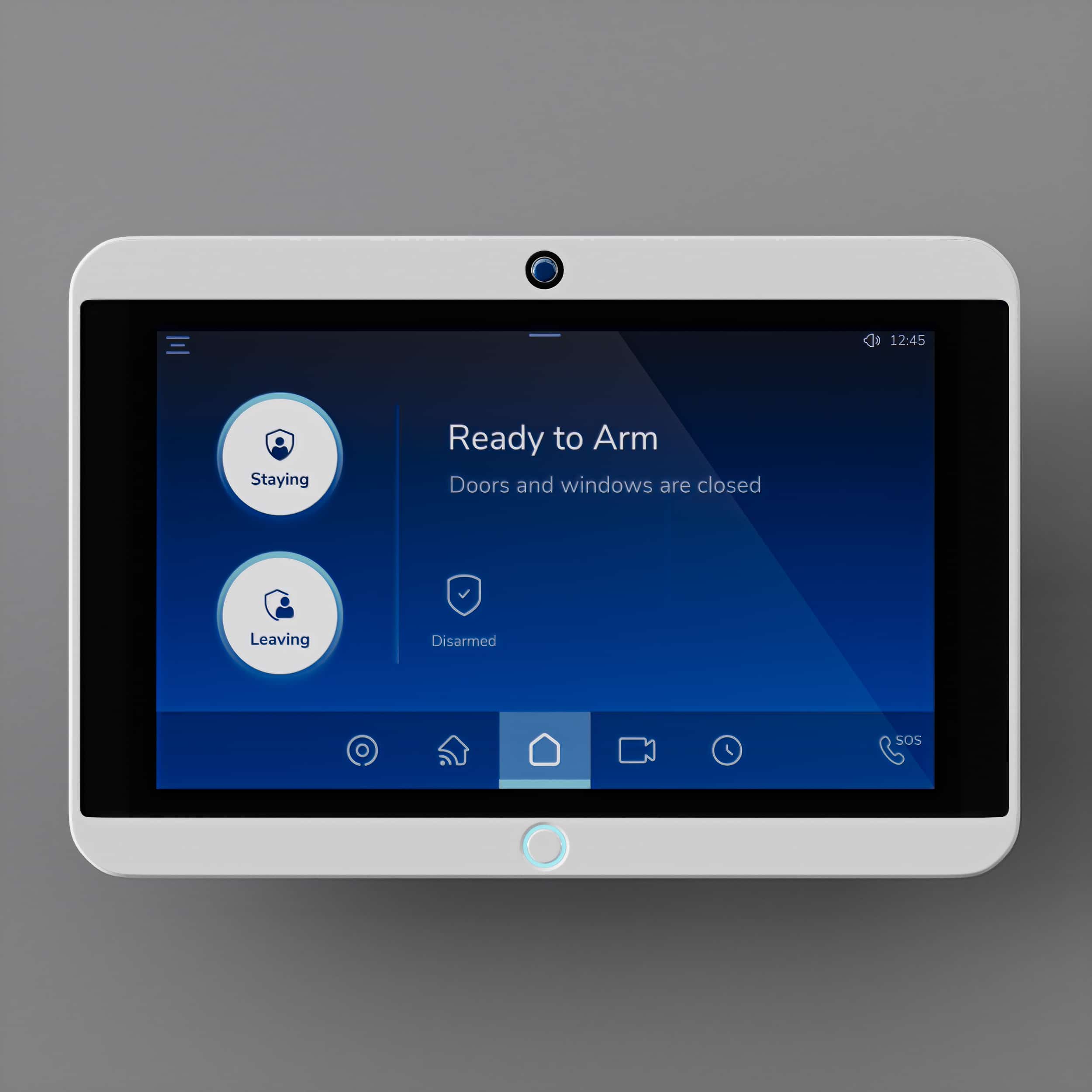
1. Tap the Hamburger menu icon: On your panel's main screen, locate and tap the Hamburger menu
icon (which looks like three horizontal lines) to access your panel's settings.
2. Enter the Master passcode: In the settings, you will be prompted to enter the Master passcode.
Input your code to proceed. Remember to keep your passcode secure.
3. Tap 'Z-Wave': After successfully entering the Master passcode, you will be presented with a variety
of options. Find and tap on the 'Z-Wave' option.
4. Tap 'Devices': Within the Z-Wave menu, locate and tap on the 'Devices' option.
5. Tap the '+' icon: In the top right corner of the Devices screen, you will find a '+' icon. Tap this to
begin the process of adding a new Z-Wave device.
6. Select 'New' or 'Used': Now you'll need to specify the status of the device you're adding.
o If the device is new, i.e., it has never been paired with another Z-Wave Controller, select
'New'.
o If the device is used, i.e., it was previously paired with another Z-Wave Controller, select
'Used'.
7. Set the device in the right mode:
o If you selected 'New', follow the instructions provided with your Z-Wave device to place
it into inclusion mode during the countdown. This allows the device to be recognized by
the controller.
o If you selected 'Used', follow the instructions provided with your Z-Wave device to place
it into exclusion mode. This process removes any prior controller associations. After this
step, place the device back into inclusion mode to initiate the pairing process.
8. Enter DSK code if prompted: Some Z-Wave devices come with a DSK (Device Specific Key) for
additional security. If your device has a DSK, you will be prompted to input this on the panel during
the pairing process. Confirm the DSK is entered correctly before continuing.
Note: Locate the Device Specific Key (DSK) for your S2 supported Z-Wave product on the device, its
manual, or packaging. The DSK is essential for securely adding the device to a Z-Wave network.
Contact the manufacturer if you need assistance.
9. Assign your device to a Room: If the Z-Wave inclusion process is successful, you will be prompted to
assign your new Z-Wave device to a room. Simply select your desired room from the available
options to finalize the pairing process.
Note: Your device features a LED indicator on the front panel. When it receives an 'Indicator Set'
command, the LED will blink five times to acknowledge the receipt of the command. | | 24 | Controller Classic Exclusion | Z-Wave Device Exclusion
1. Tap the Hamburger Menu Icon: On your panel's main screen, locate and tap the Hamburger menu
icon.
2. Enter the Master Passcode: In the settings menu, input your Master passcode when prompted.
3. Select 'Z-Wave': Navigate to and tap on the 'Z-Wave' option in the settings.
4. Tap 'Devices': Within the Z-Wave menu, locate and tap on the 'Devices' option.
5. Find and select the device: Scroll through the list of paired Z-Wave devices until you find the device
you want to remove. Tap on the device to select it.
6. Tap 'Delete': With the device selected, you will see a 'Delete' option. Tap this to initiate the device
exclusion process.
7. Place the device in exclusion mode: Follow the instructions provided with your Z-Wave device to
place it into exclusion mode during the countdown. This allows the controller to recognize that you
wish to delete the device.
8. Confirm exclusion: Once the controller has recognized the device in exclusion mode, it will exclude
the device from the system. You should receive a notification or message confirming that the device
has been successfully excluded.
Note: Your device features a LED indicator on the front panel. When it receives an 'Indicator Set'
command, the LED will blink five times to acknowledge the receipt of the command. | | 3 | Controller Learn Mode | Accessing Learn Mode
1. Tap the Hamburger Menu Icon: On your panel's main screen, locate and tap the Hamburger menu
icon.
2. Enter the Master Passcode: In the settings menu, input your Master Passcode when prompted.
3. Select 'Z-Wave': Navigate to and tap on the 'Z-Wave' option in the settings.
4. Select Learn Controller: Within the Z-Wave menu, locate and select the 'Learn Controller' option. | | 5 | Factory Reset Procedure | Reset Z-Wave Network
Warning: Please be aware that resetting the Z-Wave network will remove all connected Z-Wave devices
from your system. This is a significant action that cannot be undone. You will need to manually re-add
each device to the network once the reset is complete. If this controller is being used as a secondary
controller in the network, use this procedure to reset this controller only in the event that the network
primary controller is missing or otherwise inoperable Make sure you are certain before proceeding.
1. Tap the Hamburger Menu Icon: On your panel's main screen, locate and tap the Hamburger menu
icon.
2. Enter the Master Passcode: In the settings menu, input your Master passcode when prompted.
3. Select 'Z-Wave': Navigate to and tap on the 'Z-Wave' option in the settings.
4. Tap 'Reset Z-Wave': Within the Z-Wave menu, find and tap on the 'Reset Z-Wave' option.
5. Confirm Reset: You will be asked to confirm the network reset. Remember, this action will remove
all Z-Wave devices from your system. If you are sure you want to proceed, confirm the reset.
6. Wait for the reset to complete: The system will then begin the process of resetting the Z-Wave
network. This can take a few minutes. Please do not disrupt the system during this time.
7. Confirm completion: Once the reset is complete, you will receive a notification or message
confirming that your Z-Wave network has been reset.
Remember to follow each step, to ensure a successful network reset. After resetting the network, you
can then proceed to re-add each of your Z-Wave devices using the device pairing guide. | | 6 | Other Special Features | No other special features. | | 10 | Controller Replication | Syncing Network Information with Another Controller
1. Tap the Hamburger Menu Icon: On your panel's main screen, locate and tap the Hamburger menu
icon.
2. Enter the Master Passcode: In the settings menu, input your Master Passcode when prompted.
3. Select 'Z-Wave': Navigate to and tap on the 'Z-Wave' option in the settings.
4. Initiate Sync: Within the Z-Wave settings, find and select the 'Sync' option to allow your panel to
synchronize with the primary controller.
5. Wait for Synchronization: After selecting Sync, your panel will begin to communicate with the
primary controller.
6. Confirmation: Once the transfer is complete, your panel will display a confirmation message,
indicating that it is now up to date with the latest network information. | | 8 | Where to find S2 DSK on product | You can locate the DSK of your controller in the System Information section. Simply follow these steps:
1. Tap the Hamburger Menu Icon: On your panel's main screen, locate and tap the Hamburger menu icon.
2. Enter the Master Passcode: In the settings menu, input your Master Passcode when prompted.
3. Select 'Info': Navigate to and tap on the 'Info' option in the settings.
4. The DSK code for your product is listed next to 'DSK Code'.
Alternatively, the DSK code is also displayed on the screen after enabling Learn Mode. | | 11 | Controller SmartStart Inclusion | Including a SmartStart-Enabled Device into Z-Wave Network
1. Tap the Hamburger Menu Icon: On your panel's main screen, tap the Hamburger menu icon (three horizontal lines) to access your panel's settings.
2. Enter the Master Passcode: Input your Master passcode when prompted to access the Z-Wave settings.
3. Tap 'Z-Wave': In the settings menu, find and tap the 'Z-Wave' option.
4. Tap 'Devices': Within the Z-Wave menu, tap on the 'Devices' option.
5. Tap the '+' Icon: Tap the '+' icon in the top right corner of the Devices screen to add a new device.
6. Select SmartStart Option: Choose the SmartStart option to proceed with adding a SmartStart-enabled device.
7. Scan the QR Code: Scan the QR code on the SmartStart-enabled device or its packaging with your panel's camera.
8. Assign the Device to a Room: After the QR code is scanned, you'll be prompted to assign the device to a room.
9. Device is Added to the Provisioning List: Your device will now be on the Provisioning List. It will be automatically integrated into your Z-Wave network within 10 minutes of being powered on and within range. | | 25 | Controller Provisioning List | Accessing the Provisioning List
1. Tap the Hamburger Menu Icon: On your panel's main screen, locate and tap the Hamburger menu icon (three horizontal lines) to open the main menu.
2. Enter the Master Passcode: When prompted, input your Master passcode. This ensures that only authorized users can access and modify the system's settings.
3. Tap 'Z-Wave': In the settings menu, find and select the 'Z-Wave' option to enter the Z-Wave network settings.
4. Select 'Provisioning List': Within the Z-Wave settings, look for and tap on the 'Provisioning List'. This list displays SmartStart-enabled devices that have been scanned and registered. It shows the status of each device, indicating whether they are awaiting integration or already paired within your Z-Wave network. |
|
|---|