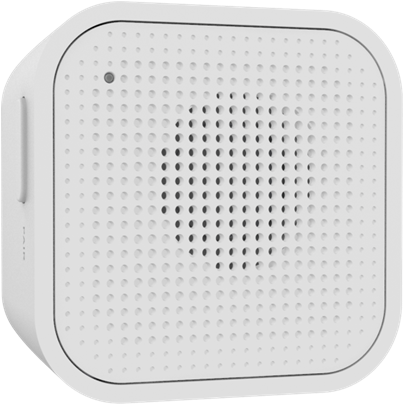
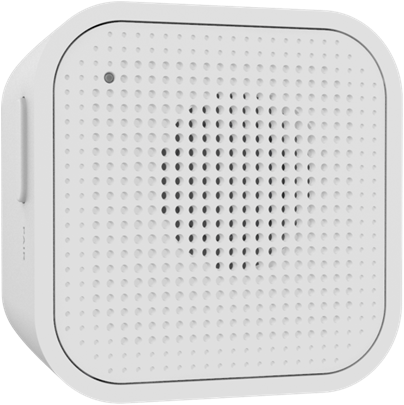
Product Recognition | |
|---|
Certification Number | ZC10-18096238 |
|---|
Name | Z-Wave Smart Chime (Sound Switch) |
|---|
Short Description | Z-Wave based wireless chime that allows a user to either enable or extend chime functionality with their doorbell and also enable chime functionality for other Z-Wave and security devices in the user's home. The chime will be implemented per the new Z-Wave Chime device type and command class. |
|---|
Long Description | This device is a security enabled Z-Wave Plus product that is able to use encrypted Z-Wave Plus messages to communicate to other security enabled Z-Wave Plus products. This device must be used in conjunction with a Security Enabled Z-Wave Controller in order to fully utilize all implemented functions. |
|---|
Brand | Sercomm |
|---|
Product Identifier | SW-SCM01N |
|---|
OEM Version | HW: 1 FW: 1.09 |
|---|
Hardware Platform | ZM5101 |
|---|
Z-Wave Version | 6.71.03 |
|---|
Library Type | SLAVE_ENHANCED_232 |
|---|
Device Type | Sound Switch |
|---|
Role Type | ROLE_TYPE_SLAVE_ALWAYS_ON |
|---|
Manufacturer ID | 0x0151 |
|---|
Product Type ID | 0x0301 |
|---|
Product ID | 0x0001 |
|---|
User Icon | 0x2202 |
|---|
Installer Icon | 0x2202 |
|---|
Frequency Plans | US: 916.00MHz, 908.40MHz |
|---|
Categories | All Lighting Devices, On/Off Switches/Devices |
|---|
Countries / Regions | United States of America |
|---|
Supported Command Classes | Identifier | Name | Key | Version |
|---|
COMMAND_CLASS_SOUND_SWITCH | Sound Switch | 0x79 | 1 | COMMAND_CLASS_FIRMWARE_UPDATE_MD_V4 | Firmware Update Meta-Data V4 | 0x7A | 4 | COMMAND_CLASS_POWERLEVEL | Powerlevel | 0x73 | 1 | COMMAND_CLASS_BASIC | Basic | 0x20 | 1 | COMMAND_CLASS_SECURITY | Security S0 | 0x98 | 1 | COMMAND_CLASS_TRANSPORT_SERVICE_V2 | Transport Service V2 | 0x55 | 2 | COMMAND_CLASS_DEVICE_RESET_LOCALLY | Device Reset Locally | 0x5A | 1 | COMMAND_CLASS_ZWAVEPLUS_INFO_V2 | Z-Wave Plus Info V2 | 0x5E | 2 | COMMAND_CLASS_ASSOCIATION_V2 | Association V2 | 0x85 | 2 | COMMAND_CLASS_ASSOCIATION_GRP_INFO | Association Group Info | 0x59 | 1 | COMMAND_CLASS_SECURITY_2 | Security S2 | 0x9F | 1 | COMMAND_CLASS_VERSION_V3 | Version V3 | 0x86 | 3 | COMMAND_CLASS_SUPERVISION | Supervision | 0x6C | 1 | COMMAND_CLASS_MANUFACTURER_SPECIFIC_V2 | Manufacturer Specific V2 | 0x72 | 2 | COMMAND_CLASS_MULTI_CMD | Multi-Command | 0x8F | 1 |
|
|---|
S2 Classes | S2_UNAUTHENTICATED, S2_AUTHENTICATED |
|---|
Documents | Category | Description | File |
|---|
Manual_Primary_Lang | Product or Owner's Manual | |
|
|---|
Features | Feature | Values |
|---|
Communications Protocol | Value |
|---|
Manufacturer Proprietary Protocol |
| Firmware Updatable | Value |
|---|
Updatable by Consumer via Internet |
| Switch Load Capacity Current | | Switch Load Capacity Volt-Ampere | | Color | |
|
|---|
Association Groups | Group Number | Maximum Nodes Supported | End Point ID | Description |
|---|
1 | 5 | 0 | All triggering report will be sent to the associated nodes. |
|
|---|
Texts | ID | Description | Value |
|---|
5 | Factory Reset | 1. Hold the Paring button for 10 second until the LED lights up.
2. When LED turns off, all Z-Wave information will be cleared, the Node ID will be excluded from the device, and all settings will be reset to factory defaults.
Note: Please use this procedure only when the network's primary controller is missing or otherwise inoperable. | 2 | Exclusion | 1. Follow your Z-Wave controller's instructions on how to put the controller into ""Remove"" mode.
2. Press the Pairing button once.
3. The LED will blink for one second while the device is being removed from the network.
4. If the device was successfully removed from the network, all Z-Wave information will be cleared,
and the Node ID will be excluded from the device. | 1 | Inclusion | Auto inclusion:
1. Follow your Z-Wave controller's instructions on how to put the controller into ""Add"" mode.
2. Power on the device.
3. The LED will blink during the inclusion process. This process may take up to 4 minutes.
4. If the device is successfully added to the network, the LED will turn off. The device will return to normal operation.
If the process fails, try repeating steps 1 - 3 again.
Manual inclusion:
1. Follow your Z-Wave controller's instructions on how to put the controller into ""Add"" mode.
2. Press the Paring button once to put the device into inclusion mode.
3. The LED will blink during the inclusion process. This process may take up to 4 minutes.
4. If the device is successfully added to the network, the LED will turn off. The device will return to normal operation.
If the process fails, try repeating steps 1 - 3 again. |
|
|---|
Supports NWI | Yes |
|---|
Supports Explorer Frames | Yes |
|---|
Radio Range Z-Wave (m) | 40 |
|---|