Product Recognition | |
|---|
Certification Number | ZC10-21037013 |
|---|
Name | Z-Wave Universal Dimmer |
|---|
Short Description | Z-Wave Plus Universal Dimmer |
|---|
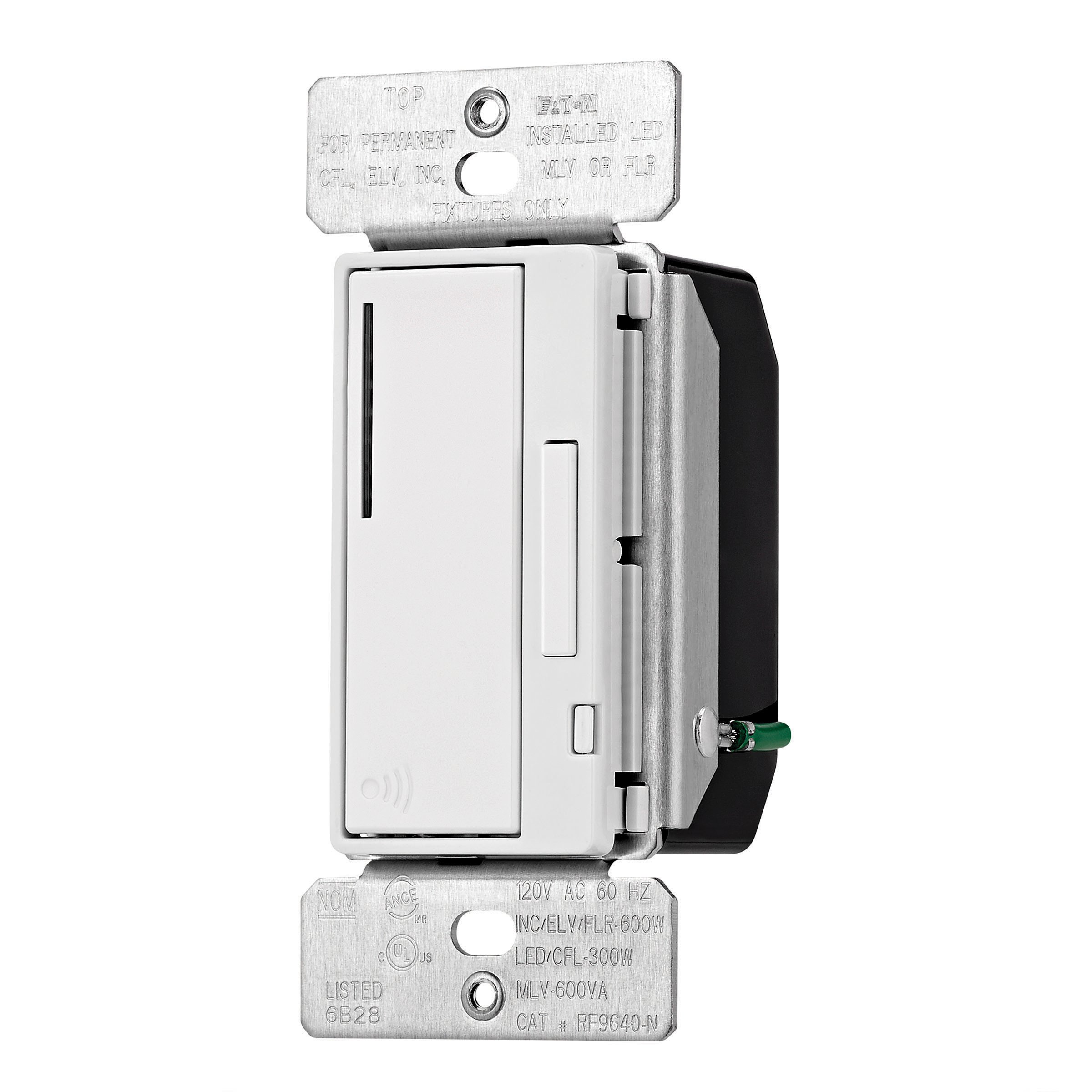
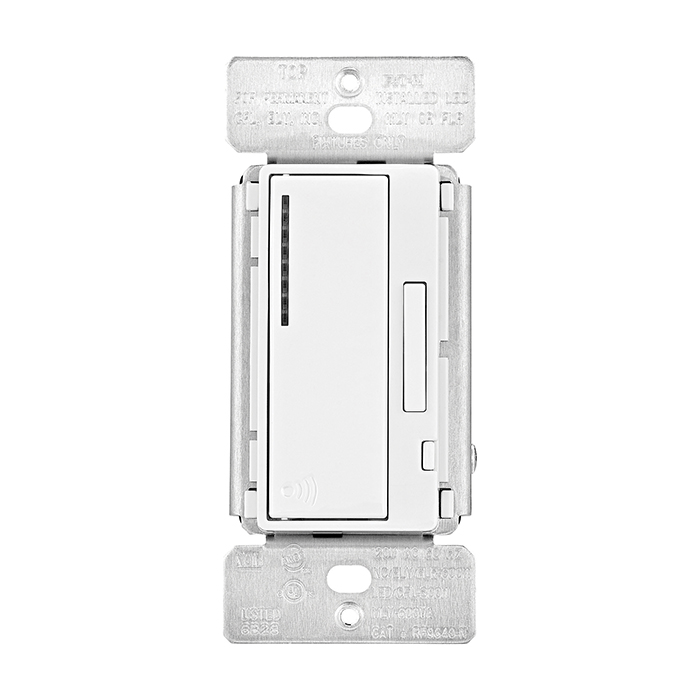
Long Description | Eaton’s Z-Wave plus Universal dimmer replaces regular switches (where a neutral is present) to provide local and remote ON/OFF and Dim UP/Down control for most common residential lighting loads including LEDs and certain motor loads. Each dimmer can be manually and remotely controlled by commands sent from your compatible Z-Wave certified controller.
Features & Benefits:
• Replaces standard switch to add local and wireless control
• Compatible with most common residential lighting loads including LED, CFLs, INC, MLVs, ELVs, HAL.
• Single pole and 3-Way control: Use with Z-Wave Plus Accessory dimmer RF9642-Z
• Neutral is required for installation
*3-Way Wired installation
• Features 7 step blue load indicating LED light that can be dimmed in ON or OFF state
• Supports Z-Wave Plus technology including S2 Security certification for advanced encryption & cybersecurity
• Voice and app based control when used with compatible Z-Wave controller |
|---|
Brand | Eaton |
|---|
Product Identifier | RF9643-N |
|---|
Product Line | Z-Wave Wireless collection |
|---|
OEM Version | HW: 255 FW: 3.01 |
|---|
Hardware Platform | ZM5101 |
|---|
Z-Wave Version | 6.82.01 |
|---|
Library Type | SLAVE_ENHANCED_232 |
|---|
Device Type | Light Dimmer Switch |
|---|
Role Type | ROLE_TYPE_SLAVE_ALWAYS_ON |
|---|
Manufacturer ID | 0x001A |
|---|
Product Type ID | 0x4449 |
|---|
Product ID | 0x0501 |
|---|
User Icon | 0x0600 |
|---|
Installer Icon | 0x0600 |
|---|
Frequency Plans | US: 916.00MHz, 908.40MHz |
|---|
Categories | All Lighting Devices, Dimming Lighting Devices |
|---|
Countries / Regions | United States of America |
|---|
Supported Command Classes | Identifier | Name | Key | Version |
|---|
COMMAND_CLASS_SCENE_ACTUATOR_CONF | Scene Actuator Conf | 0x2C | 1 | COMMAND_CLASS_NODE_NAMING | Node Naming | 0x77 | 1 | COMMAND_CLASS_POWERLEVEL | Powerlevel | 0x73 | 1 | COMMAND_CLASS_ALARM | Alarm | 0x71 | 1 | COMMAND_CLASS_CONFIGURATION | Configuration | 0x70 | 1 | COMMAND_CLASS_TRANSPORT_SERVICE_V2 | Transport Service V2 | 0x55 | 2 | COMMAND_CLASS_VERSION_V2 | Version V2 | 0x86 | 2 | COMMAND_CLASS_DEVICE_RESET_LOCALLY | Device Reset Locally | 0x5A | 1 | COMMAND_CLASS_ZWAVEPLUS_INFO_V2 | Z-Wave Plus Info V2 | 0x5E | 2 | COMMAND_CLASS_ASSOCIATION_V2 | Association V2 | 0x85 | 2 | COMMAND_CLASS_ASSOCIATION_GRP_INFO | Association Group Info | 0x59 | 1 | COMMAND_CLASS_SWITCH_MULTILEVEL_V4 | Switch Multilevel V4 | 0x26 | 4 | COMMAND_CLASS_BASIC_V2 | Basic V2 | 0x20 | 2 | COMMAND_CLASS_SECURITY_2 | Security S2 | 0x9F | 1 | COMMAND_CLASS_SUPERVISION | Supervision | 0x6C | 1 | COMMAND_CLASS_PROTECTION | Protection | 0x75 | 1 | COMMAND_CLASS_SCENE_ACTIVATION | Scene Activation | 0x2B | 1 | COMMAND_CLASS_FIRMWARE_UPDATE_MD_V2 | Firmware Update Meta-Data V2 | 0x7A | 2 | COMMAND_CLASS_MANUFACTURER_SPECIFIC_V2 | Manufacturer Specific V2 | 0x72 | 2 |
|
|---|
Controlled Command Classes | Identifier | Name | Key | Version |
|---|
COMMAND_CLASS_ASSOCIATION_V2 | Association V2 | 0x85 | 2 | COMMAND_CLASS_SWITCH_MULTILEVEL_V4 | Switch Multilevel V4 | 0x26 | 4 | COMMAND_CLASS_BASIC_V2 | Basic V2 | 0x20 | 2 |
|
|---|
S2 Classes | S2_UNAUTHENTICATED, S2_AUTHENTICATED |
|---|
Documents | Category | Description | File |
|---|
Manual_Primary_Lang | Product Manual in English | |
|
|---|
Features | Feature | Values |
|---|
Firmware Updatable | Value |
|---|
Updatable by Consumer by RF |
| Neutral Wire Required | | Color | | Loads Controlled | | Switch Load Capacity Watts | | Z-Wave Scene Type | |
|
|---|
Association Groups | Group Number | Maximum Nodes Supported | End Point ID | Group Name | Description |
|---|
2 | 5 | 0 | On-OFF | Associated node needs to communicate to this group to turn on/off device | 1 | 5 | 0 | Lifeline | Lifeline, it has node number of the installing controller | 3 | 5 | 0 | DIM UP/DIM Down | Associated node needs to communicate to this group to dim up and down the device |
|
|---|
Configuration Parameters | Parameter Number | Name | Description | Format | Size | Min Value | Max Value | Default Value | Parameter Values |
|---|
4 | Not Used | N/A | 1 | 1 | 0 | 0 | 0 | From | To | Description |
|---|
0 | 0 | Not Used |
| 9 | Reset Max/Min Levels to factory default | Before leaving the network the dimmer will send a notification to the controller indicating its departure from the Z-Wave network. • Turn the device ON. • Press and hold ON/OFF button for 20 second till the LED flashes for the fifth time. (third time for RF9642-Z) • Release the ON/OFF button. • LED will start flashing rapidly. Once the LED starts blinking slowly, that indicates the device is not part of the network. | 1 | 1 | 0 | 0 | 0 | From | To | Description |
|---|
0 | 0 | Reset Max/Min Levels to factory default |
| 10 | Not Used | N/A | 1 | 1 | 0 | 0 | 0 | From | To | Description |
|---|
0 | 0 | Not Used |
| 5 | Power Up State | 1=OFF, 2=ON, 3=Last State | 1 | 1 | 1 | 3 | 1 | From | To | Description |
|---|
1 | 3 | Power Up State |
| 8 | Kickstart Enable/Disable | This feature ensures that LED/CFL lights turn on when the dimmer preset level is low. With this setting enabled, the lights may momentarily come ON brighter than the preset level (less than one second) and then dim down to the preset level. Depending on the type of light used, this feature may not be needed. To enable/disable the feature, turn lights ON. Press and hold the ON/OFF button for 10 seconds until the blue indicator LEDs flash for the third time, then release the button. This feature is disabled by default. | 1 | 1 | 0 | 1 | 0 | From | To | Description |
|---|
0 | 1 | Kickstart Enable/Disable |
| 7 | Dimmer Ramp Time | Sets the value of how long it takes to ramp up the dimmer | 1 | 1 | 0 | 127 | 3 | From | To | Description |
|---|
0 | 127 | Dimmer Ramp Time |
| 2 | Panic ON Time | How long the device will stay on in Panic mode | 1 | 1 | 0 | 127 | 1 | From | To | Description |
|---|
0 | 127 | Panic ON Time |
| 6 | Panic Mode Enable | Set the device panic mode to on or off | 1 | 1 | 0 | 1 | 0 | From | To | Description |
|---|
0 | 1 | Panic Mode Enable |
| 3 | Panic OFF Time | How long before the device shuts off panic mode | 1 | 1 | 0 | 127 | 1 | From | To | Description |
|---|
0 | 127 | Panic ON Time |
| 1 | Delayed OFF time | When the user holds the button for 2 seconds while the dimmer is on -the dimmer will turn off after delayed off time. | 1 | 1 | 0 | 127 | 10 | From | To | Description |
|---|
0 | 127 | Delayed Off Time |
| 11 | Set Minimum Dimming Level | For maximum compatibility with different load types, RF9643-N allows the user to set the minimum dim level or low end trim. Also to save on power consumption RF9643-N allows the user to set the maximum dim level or high end trim. • After adding the dimmer to a network, press ON/OFF button to turn ON the overhead light. • Press and hold ON/OFF button for five seconds until the blue indicator LEDs begin to cycle rapidly (Notice - After two seconds blue indicator LEDs will start to flash indicating activation of the ‘delayed OFF’ feature. Continue to hold the ON/OFF button for three additional seconds until the blue indicator LEDs begin to cycle rapidly.) • Once the indicator LEDs start cycling, release the ON/OFF button. Dimmer will set the light to the previously saved minimum level. During initial setup, the light will set to the factory minimum default. • Press either the BRIGHTEN or DIM buttons to change the minimum level until the light output is acceptable. • Once light output is acceptable, press ON/OFF button once. Blue indicator LEDs will start to cycle rapidly again and the dimmer light will go to previously saved maximum level. • Press either the BRIGHTEN or DIM buttons to change the maximum level until the light output is acceptable. • Press ON/OFF button once, LED will flash indicating completion of programming. | 1 | 1 | 1 | 99 | 1 | From | To | Description |
|---|
1 | 99 | Set Minimum Dimming Level |
|
|
|---|
Texts | ID | Description | Value |
|---|
8 | Where to find S2 DSK on product | The Z-Wave Plus Device Specific Key (DSK) is required when adding the Z-Wave Plus Universal Dimmer RF9643-N to a Z-Wave network with a controller supporting Security 2 (S2). The DSK can be located on the card insert in the box. | 5 | Factory Reset Procedure | Local Reset (RF9643-N & RF9642-Z) (Please use this procedure only when the network primary controller is missing or otherwise inoperable).
The device could be reset locally. This will cause the device to be excluded from its network and restore to factory default
Before leaving the network the dimmer will send a notification to the controller indicating its departure from the
Z-Wave network.
• Turn the device ON.
• Press and hold ON/OFF button for 20 second till the LED flashes for the fifth time. (third time for RF9642-Z)
• Release the ON/OFF button.
• LED will start flashing rapidly. Once the LED starts blinking slowly, that indicates the device is
not part of the network.. | 6 | Other Special Features | Rapid start feature (RF9643-N only):
This feature ensures that LED/CFL lights turn on when the dimmer preset level is low. With this setting enabled, the lights may momentarily come
ON brighter than the preset level (less than one second) and then dim down to the preset level. Depending on the type of light used, this feature
may not be needed. To enable/disable the feature, turn lights ON. Press and hold the ON/OFF button for 10 seconds until the blue indicator LEDs
flash for the third time, then release the button. This feature is disabled by default. | 2 | Classic Exclusion | Removing Z-Wave Plus Wireless Universal Dimmer from a Z-Wave Network:
1. To exclude this device from a Z-Wave network, select the setting on your Z-Wave controller for exclusion (Uninstall, Remove
Device, Remove Node, Exclude Device, etc.).
2. Once your controller is in exclusion mode, press the device ON/OFF switch one time to exclude it from the network. The LED will start blinking. | 1 | Classic Inclusion | This product may be added to a new or existing Z-Wave network. An Eaton Wiring Devices Z-Wave device has a blue LED,
which will blink when the device is not included in a Z-Wave network. The LED stops blinking when the device is in a network.
• This product works with other Z-Wave products from different vendors and product categories as part of the same network.
• This product is a listening node and it will act as a repeater in the Z-Wave network. It will perform the repeater function with
Z-Wave products from Eaton and from other Z-Wave vendors.
• This secure Z-Wave Plus device will only associate with other secure devices based on the Z-Wave controller it’s being used with.
Please refer to instructions provided with the controller for more details.
Adding Z-Wave Plus Wireless Universal Dimmer to a Z-Wave Network:
1. To include this device in a Z-Wave network, select the command on your Z-Wave controller for inclusion (Install, Add Device,
Add Node, Include Device, etc.). Then press the device ON/OFF switch one time to include it in the network.
2. Based on the controller, the controller may ask you to scan the QR code on the device or manually enter 5 digit code under the
QR code to install the device as a secured device. You may find this QR code on the device or included in device packaging.
3. After the Device is added to the network, the LED will stop blinking. This indicates the device is installed in the Z-Wave network. |
|
|---|
Supports NWI | Yes |
|---|
Supports Explorer Frames | Yes |
|---|
Supports SmartStart | Yes |
|---|
Radio Range Z-Wave (m) | 40 |
|---|