Product Recognition | |
|---|
Certification Number | ZC10-16085193 |
|---|
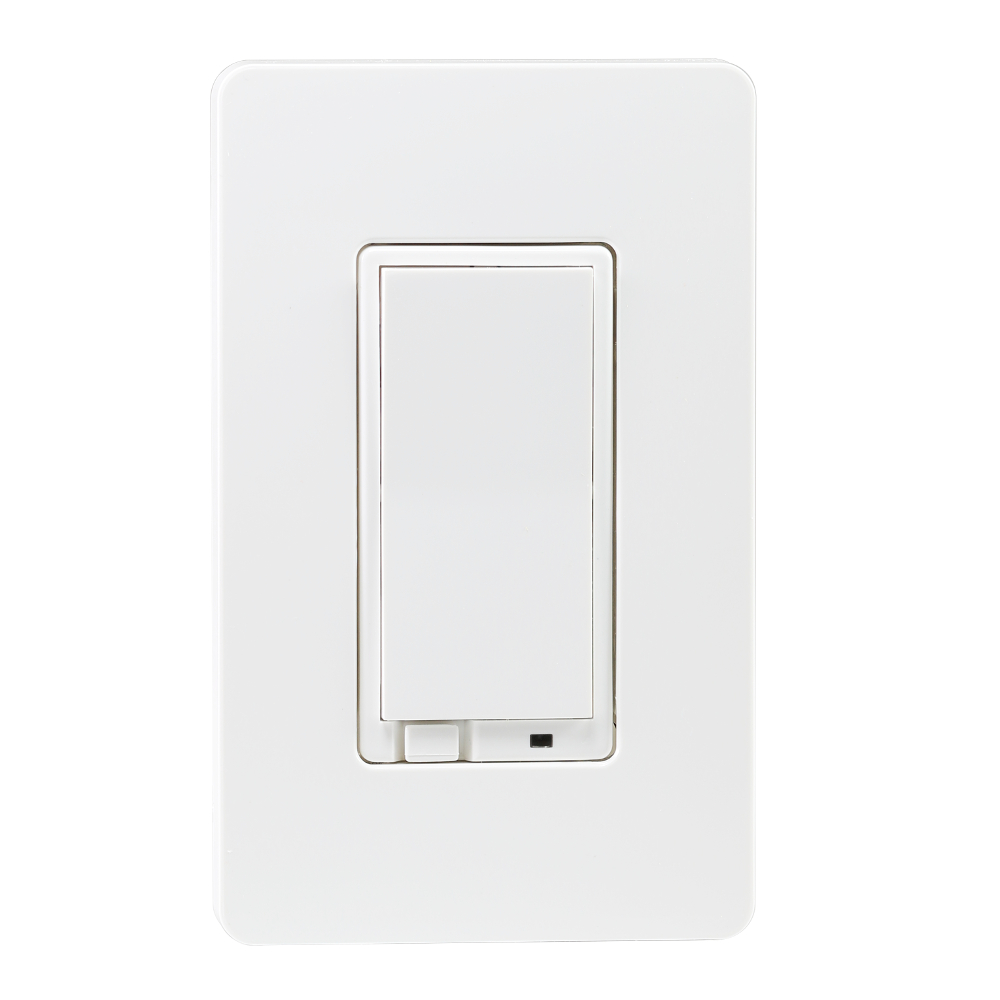
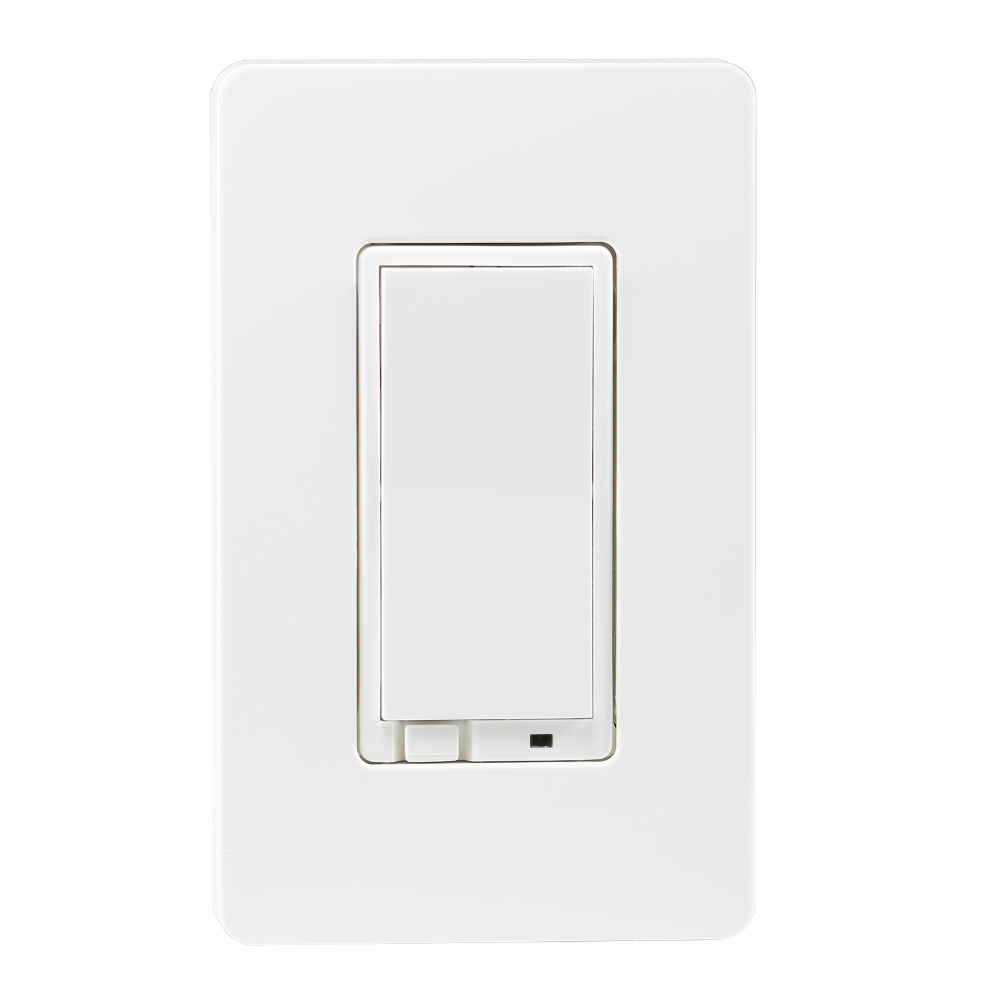
Name | Zooz Z-Wave On / Off Light Switch |
|---|
Short Description | Use this Z-Wave Plus On / Off switch to control and monitor lighting from anywhere. Modern decora style is complemented by a screwless snap-on wall plate. |
|---|
Long Description | PRODUCT FEATURES:
- Manual or remote on/off control from your mobile device or computer (when included to a Z-Wave gateway controller)
- Z-Wave Plus with improved 500 chip for faster and safer wireless communication
- Works with LED, CFL, and incandescent bulbs
- Based on universal binary switch command class - supported by most Z-Wave controllers
- May be associated and grouped with other Z-Wave devices for advanced home automation
- Simple elegant design with screwless snap-on wall plate included
- Built-in Z-Wave signal repeater for a stronger and more reliable network
- Single pole installation only, neutral wire required
SPECIFICATIONS:
Model Number: ZEN21
Z-Wave Signal Frequency: 908.42 MHz
Power: 120 VAC, 60 Hz
Maximum Loads: 960W Incandescent, 1800W (15A) Resistive, ½ HP Motor
Range: Up to 100 feet line of sight between the Wireless Controller and the closest Z-Wave receiver module
Operating Temperature: 32-104° F (0-40° C)
Installation and Use: Indoor only |
|---|
Brand | Zooz |
|---|
Product Identifier | ZEN21 |
|---|
OEM Version | HW: 1 FW: 20.15 |
|---|
Hardware Platform | ZM5202 |
|---|
Z-Wave Version | 6.51.06 |
|---|
Library Type | SLAVE_ROUTING |
|---|
Device Type | On/Off Power Switch |
|---|
Role Type | ROLE_TYPE_SLAVE_ALWAYS_ON |
|---|
Manufacturer ID | 0x015D |
|---|
Product Type ID | 0x0111 |
|---|
Product ID | 0x231C |
|---|
User Icon | 0x1D00 |
|---|
Installer Icon | 0x1D00 |
|---|
Frequency Plans | US: 916.00MHz, 908.40MHz |
|---|
Categories | All Lighting Devices, On/Off Switches/Devices |
|---|
Countries / Regions | United States of America |
|---|
Documents | Category | Description | File |
|---|
Manual_Primary_Lang | Product or Owner's Manual | |
|
|---|
Features | Feature | Values |
|---|
Color | | Electric Load Type | Value |
|---|
Incandescent | Fluorescent | LED |
| Switch Load Capacity Current | | Switch Load Capacity Watts | Value |
|---|
960 Watts (incandescent); 1800 Watts (resistive) |
| Neutral Wire Required | | Switch Type | Value |
|---|
Decorator Paddle Push with Indicator |
|
|
|---|
Association Groups | Group Number | Maximum Nodes Supported | End Point ID | Description |
|---|
1 | 5 | 0 | Depending on your Z-Wave gateway's home automation software capabilities, you may be able to associate your Z-Wave switch in groups with other Z-Wave devices to schedule scenes and create events. This on off switch supports Group 1 with up to five devices for lifeline communication. This device will send SWITCH BINARY REPORT to Group 1 when operated manually.
Please refer to your controller's user guide for advanced programming instructions as they are a little different for every software. |
|
|---|
Texts | ID | Description | Value |
|---|
2 | Exclusion | 1. Bring your Z-Wave gateway hub or controller as close to the switch as possible
2. Put your Z-Wave controller in exclusion mode
3. Tap the switch on and off quickly 3 times to complete the exclusion process
4. The device should disappear from your controller's device list
Please repeat the process following all steps carefully if the first attempt is unsuccessful | 1 | Inclusion | 1. Bring your Z-Wave gateway hub or controller as close to the switch as possible
2. Put your Z-Wave controller in inclusion mode
3. Tap the switch on and off quickly 3 times to finalize the inclusion process
4. A new on/off device should appear on your controller's device list
Troubleshooting Tips:
If you are unable to include the Z-Wave switch to your controller, please try one of the following:
- Bring the controller closer to your Z-Wave switch or use a hand-held secondary controller for inclusion
- Tap your Z-Wave switch quicker 4 or 5 times once you put the controller in the inclusion mode to ensure the command has gone through
- Put your controller in the EXCLUSION mode and tap the switch quickly 3 times, then try adding it to your network again | 5 | Factory Reset | The switch will be reset to factory defaults only by exclusion using a Z-Wave controller. You may use any certified Z-Wave controller to exclude and reset the switch. This device may not be reset manually when the network’s primary controller is missing or otherwise inoperable. NOTE: All previously recorded activity and custom settings will be erased from the device’s memory. |
|
|---|
Supports NWI | Yes |
|---|
Supports Explorer Frames | Yes |
|---|
Radio Range Z-Wave (m) | 40 |
|---|