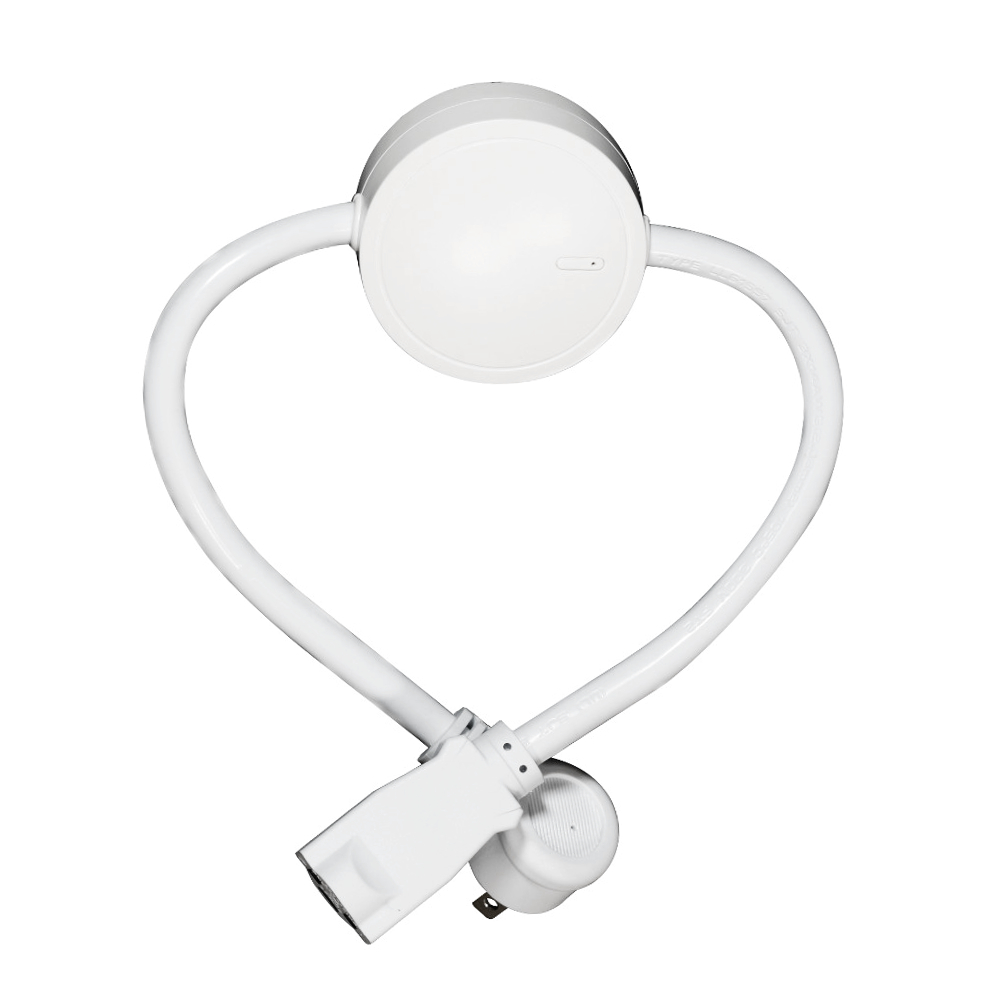
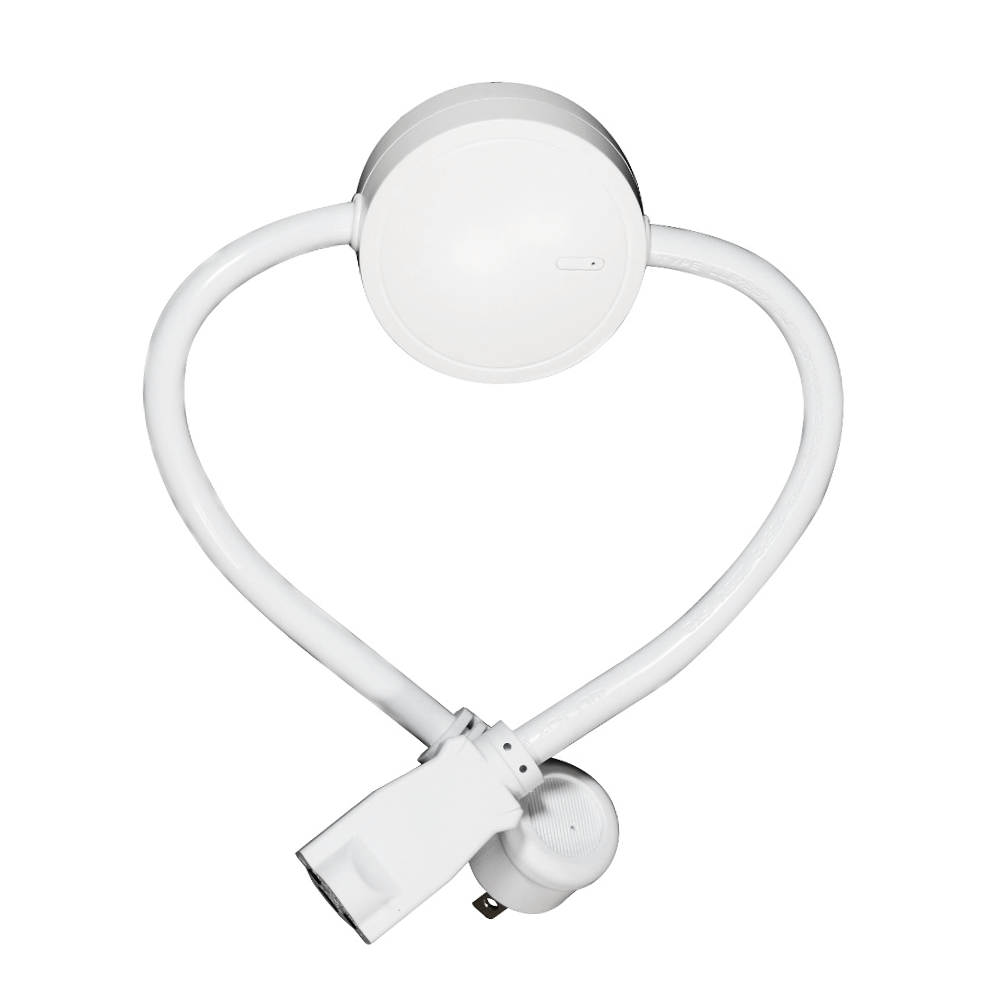
Product Recognition | |
|---|
Certification Number | ZC10-17075708 |
|---|
Name | Zooz Z-Wave Plus Power Switch |
|---|
Short Description | The Zooz Power Switch is the perfect solution to control heavy duty appliances powered by 110V and rated at or below 15A / 1/2 HP. |
|---|
Long Description | PRODUCT FEATURES:
Local and Z-Wave wireless control of your favorite home appliances like microwaves and refrigerators.
Energy monitoring in live mode or over time (your Z-Wave gateway needs to support this feature).
Scene inclusion for custom automation events when included to a Z-Wave gateway controller.
On/Off status recovery after power failure.
LED indicator to display Z-Wave signal strength and power usage for the connected device.
Added security with AES signal encryption (requires a security enabled gateway controller for full functionality).
Z-Wave Plus with improved 500 chip for faster and more reliable wireless communication.
Built-in range extender.
SPECIFICATIONS:
Model Number: ZEN15
Z-Wave Signal Frequency: 908.42 MHz
Power: 120V, 60Hz
Maximum Load: 15A, 1800W, ½ HP
Operating Temperature: 14° – 104° F
Range: Up to 130 feet line of sight
Installation and Use: Indoor only
Dimensions: 20” (with cord) x 2.6” x 1.1”
Weight: 10oz |
|---|
Brand | Zooz |
|---|
Product Identifier | ZEN15 |
|---|
OEM Version | HW: 1 FW: 1.00 |
|---|
Hardware Platform | ZM5101 |
|---|
Z-Wave Version | 6.51.09 |
|---|
Library Type | SLAVE_ENHANCED_232 |
|---|
Device Type | On/Off Power Switch |
|---|
Role Type | ROLE_TYPE_SLAVE_ALWAYS_ON |
|---|
Manufacturer ID | 0x027A |
|---|
Product Type ID | 0x0101 |
|---|
Product ID | 0x000D |
|---|
User Icon | 0x0700 |
|---|
Installer Icon | 0x0700 |
|---|
Frequency Plans | US: 916.00MHz, 908.40MHz |
|---|
Categories | Energy Meters, All Lighting Devices, On/Off Switches/Devices |
|---|
Countries / Regions | United States of America |
|---|
Supported Command Classes | Identifier | Name | Key | Version |
|---|
COMMAND_CLASS_SCENE_ACTUATOR_CONF | Scene Actuator Conf | 0x2C | 1 | COMMAND_CLASS_POWERLEVEL | Powerlevel | 0x73 | 1 | COMMAND_CLASS_SWITCH_ALL | Switch All | 0x27 | 1 | COMMAND_CLASS_SWITCH_BINARY | Switch Binary | 0x25 | 1 | COMMAND_CLASS_BASIC | Basic | 0x20 | 1 | COMMAND_CLASS_CONFIGURATION | Configuration | 0x70 | 1 | COMMAND_CLASS_SECURITY | Security S0 | 0x98 | 1 | COMMAND_CLASS_VERSION_V2 | Version V2 | 0x86 | 2 | COMMAND_CLASS_DEVICE_RESET_LOCALLY | Device Reset Locally | 0x5A | 1 | COMMAND_CLASS_ZWAVEPLUS_INFO_V2 | Z-Wave Plus Info V2 | 0x5E | 2 | COMMAND_CLASS_ASSOCIATION_V2 | Association V2 | 0x85 | 2 | COMMAND_CLASS_METER_V3 | Meter V3 | 0x32 | 3 | COMMAND_CLASS_ASSOCIATION_GRP_INFO | Association Group Info | 0x59 | 1 | COMMAND_CLASS_SCENE_ACTIVATION | Scene Activation | 0x2B | 1 | COMMAND_CLASS_FIRMWARE_UPDATE_MD_V2 | Firmware Update Meta-Data V2 | 0x7A | 2 | COMMAND_CLASS_MANUFACTURER_SPECIFIC_V2 | Manufacturer Specific V2 | 0x72 | 2 |
|
|---|
Documents | Category | Description | File |
|---|
Manual_Primary_Lang | Product or Owner's Manual | |
|
|---|
Features | Feature | Values |
|---|
Color | | Electric Load Type | Value |
|---|
Incandescent | Fluorescent | LED | Inductive (e.g. Motor) |
| Switch Load Capacity Watts | | Supported Meter Type | |
|
|---|
Association Groups | Group Number | Maximum Nodes Supported | End Point ID | Description |
|---|
1 | 5 | 0 | Z-Wave Plus Lifeline |
|
|---|
Configuration Parameters | Parameter Number | Name | Description | Format | Size | Min Value | Max Value | Default Value | Parameter Values |
|---|
24 | On/Off Status Change Notifications | Your Power Switch will automatically send a notification to the controller and other associated devices if its status changes from on to off or the other way round. Choose when you want it to send the report. Values: 0 – disabled (it will not send status change notifications); 1 – sends notification if status is changed manually or remotely via Z-Wave (default); 2 – sends notification ONLY if status is changed manually by pressing and releasing the Z-Wave button on the Power Switch; | 0 | 1 | 0 | 0 | 1 | From | To | Description |
|---|
0 | 0 | Disabled | 1 | 1 | Sends notification if status is changed manually or remotely via Z-Wave | 2 | 2 | Sends notification ONLY if status is changed manually by pressing and releasing the Z-Wave button on the Power Switch |
| 151 | Power Report Value Threshold | Choose how you want your Power Switch to report power consumption to your controller and associated devices. The number entered as value corresponds to the number of Watts the appliance needs to go over for the change to be reported. So if 50 Watts are entered by default, the Power Switch will report any change in power usage over 50 Watts (whether it’s at least 50 Watts more or 50 Watts less compared to previous report). Values: 0 – 65535; 0 – disabled (it will not report power consumption based on value change) | 0 | 2 | 0 | 0 | 50 | From | To | Description |
|---|
1 | 65535 | Number of Watts the appliance needs to go over for the change to be reported | 0 | 0 | Disabled |
| 152 | Power Report Percentage Threshold | Choose how you want your Power Switch to report power consumption to your controller and associated devices by percentage rate. The number entered as value corresponds to the percentage in power usage change the appliance needs to go over for the event to be reported. So if 10% is entered by default, the Power Switch will report any change in power consumption over 10% (whether it’s at least 10% more or 10% less power consumption compared to previous report). Values: 0 – 255; 0 – disabled (it will not report power consumption based on percentage change) | 0 | 2 | 0 | 0 | 10 | From | To | Description |
|---|
1 | 255 | Percentage in power usage change the appliance needs to go over for the event to be reported | 0 | 0 | Disabled |
| 172 | Energy Report Frequency | Choose how often you want your Power Switch to report energy usage (KWH) to your controller and associated device. The number entered as value corresponds to the number of seconds. So if 300 is entered by default, the Power Switch will report energy usage every 300 seconds (5 minutes). Values: 5 – 2678400; 0 – disabled (it will not report energy usage); | 0 | 4 | 0 | 0 | 300 | From | To | Description |
|---|
5 | 2678400 | Number of seconds | 0 | 0 | Disabled |
| 173 | Voltage Report Frequency | Choose how often you want your Power Switch to report voltage (V) to your controller and associated device. The number entered as value corresponds to the number of seconds. Values: 5 – 2678400; 0 – disabled (default – it will not report voltage levels) | 0 | 4 | 0 | 0 | 0 | From | To | Description |
|---|
5 | 2678400 | Number of seconds | 0 | 0 | Disabled |
| 174 | Electricity Report Frequency | Choose how often you want your Power Switch to report levels of electrical current (A) to your controller and associated device. The number entered as value corresponds to the number of seconds. Values: 5 – 2678400; 0 – disabled (default – it will not report electrical current levels) | 0 | 4 | 0 | 0 | 0 | From | To | Description |
|---|
5 | 2678400 | Number of seconds | 0 | 0 | Disabled |
|
|
|---|
Texts | ID | Description | Value |
|---|
1 | Inclusion | Please include the Power Switch to your network BEFORE connecting it to the appliance you wish to control.
Auto Z-Wave Inclusion:
1. Put your Z-Wave controller into inclusion mode
2. Plug the Power Switch into a grounded receptacle located within direct range from your Z-Wave gateway controller
3. The LED indicator will start flashing blue, then turn blue (on) or pink (off) once included
4. A new on / off device will be recognized by your Z-Wave controller
Manual Z-Wave Inclusion:
1. Plug the Power Switch into a grounded receptacle located within direct range from your Z-Wave gateway controller
2. Put your Z-Wave controller into inclusion mode
3. Press and release the Z-Wave button 3 TIMES QUICKLY
4. The LED indicator will start flashing blue, then turn blue (on) or pink (off) once included
5. A new on / off device will be recognized by your Z-Wave controller
Secure Z-Wave Inclusion:
1. Plug the Power Switch into a grounded receptacle located within direct range from your Z-Wave gateway controller
2. Put your Z-Wave controller in secure inclusion mode
Press and HOLD the Z-Wave button for at least 3 seconds
3. The LED indicator will start flashing green, then turn blue (on) or pink (off) once included
4. A new secure on / off device will be recognized by your Z-Wave controller | 2 | Exclusion | 1. Plug the Power Switch into a grounded receptacle located within direct range of your Z-Wave gateway controller
2. Put your Z-Wave controller into exclusion mode
3. Press and release the Z-Wave button 3 TIMES QUICKLY
4. The LED indicator will start flashing orange, then turn blue (on) or pink (off) once excluded
5. The Power Switch will disappear from your controller's device list. The LED indicator will remain solid orange for a few seconds to indicate exclusion
If the first attempt is unsuccessful, please repeat the process following all steps carefully. | 6 | Additional Special Features | Controls 110 V appliances with high input surge current (power draw at start-up) such as motors, pumps, refrigerators, and window AC units (rated at or below 15 A / 0.5 HP) | 5 | Factory Reset | When your network’s primary controller is missing or otherwise inoperable, you may need to reset the device to factory settings manually. In order to complete the process, plug the Power Switch into a grounded receptacle, then PRESS AND HOLD the Z-Wave button for AT LEAST 20 SECONDS. The LED indicator will flash orange and then stay solid orange for 2 seconds to indicate successful reset. The Power Switch will then turn off.
NOTE: All previously recorded activity and custom settings will be erased from the device’s memory. You may only reset your Power Switch once it has been included to a Z-Wave network. |
|
|---|
Supported / Controlled Meter Types | Meter Type | Rate Type | Description |
|---|
Electric meter | Import | Electric Meter Consumption |
|
|---|
Supports NWI | Yes |
|---|
Supports Explorer Frames | Yes |
|---|