Product Recognition | |
|---|
Certification Number | ZC10-18066168 |
|---|
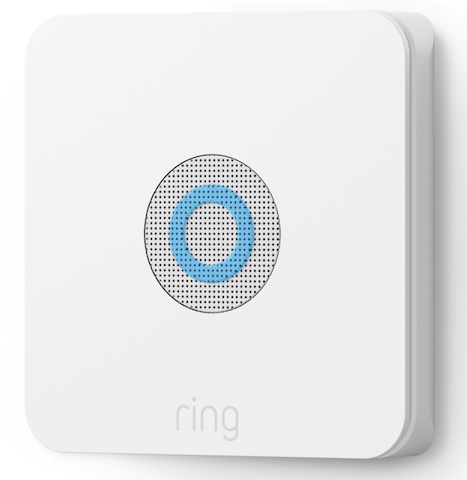
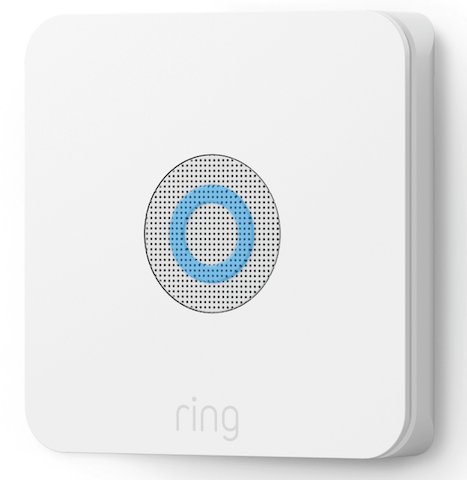
Name | Ring Alarm Base Station |
|---|
Short Description | The new Ring Protect security system adds a simple, smart, affordable professional security solution for your home. |
|---|
Long Description | The new Ring Protect security system adds a simple, smart, affordable security solution for your home. Set up your Protect Security Kit, sign up for 24/7 professional security monitoring, add accessory devices to build your system, and control access to your devices through Locations and Users. Ring Protect adds a ring of security inside your home for enhanced peace of mind and protection.
The Ring Protect system together with Ring's video doorbells, cameras, and accessories, creates a stronger-than-ever Ring of Security that protects your home both inside and out. Whether you’re on vacation halfway around the world, or just too busy with the kids upstairs, Ring lets you watch over your home from anywhere. Because with Ring, you’re always home.
Ring Features:
- High-definition video
- Wide-angle camera lens
- Two-way talk
- Advanced motion detection
- Infrared night vision
- Video recording
- Lifetime purchase protection
- 24/7 Professional monitoring
- Monitor your doors and windows |
|---|
Brand | Ring |
|---|
Product Identifier | Ring Base Station |
|---|
OEM Version | HW: 1 FW: 5.14:02.80:01.00:01.00 |
|---|
Hardware Platform | SD3503 |
|---|
Z-Wave Version | 6.80.00 |
|---|
Library Type | CONTROLLER_BRIDGE |
|---|
Device Type | Central Controller |
|---|
Role Type | ROLE_TYPE_CONTROLLER_CENTRAL_STATIC |
|---|
Manufacturer ID | 0x0346 |
|---|
Product Type ID | 0x0001 |
|---|
Product ID | 0x0101 |
|---|
User Icon | 0x0500 |
|---|
Installer Icon | 0x0500 |
|---|
Frequency Plans | US: 916.00MHz, 908.40MHz |
|---|
Categories | Security Systems |
|---|
Countries / Regions | United States of America |
|---|
Supported Command Classes | Identifier | Name | Key | Version |
|---|
COMMAND_CLASS_POWERLEVEL | Powerlevel | 0x73 | 1 | COMMAND_CLASS_INCLUSION_CONTROLLER | Inclusion Controller | 0x74 | 1 | COMMAND_CLASS_APPLICATION_STATUS | Application Status | 0x22 | 1 | COMMAND_CLASS_CRC_16_ENCAP | CRC16 Encapsulation | 0x56 | 1 | COMMAND_CLASS_SECURITY | Security S0 | 0x98 | 1 | COMMAND_CLASS_TRANSPORT_SERVICE_V2 | Transport Service V2 | 0x55 | 2 | COMMAND_CLASS_VERSION_V2 | Version V2 | 0x86 | 2 | COMMAND_CLASS_DEVICE_RESET_LOCALLY | Device Reset Locally | 0x5A | 1 | COMMAND_CLASS_ZWAVEPLUS_INFO_V2 | Z-Wave Plus Info V2 | 0x5E | 2 | COMMAND_CLASS_ASSOCIATION_V2 | Association V2 | 0x85 | 2 | COMMAND_CLASS_SECURITY_2 | Security S2 | 0x9F | 1 | COMMAND_CLASS_SUPERVISION | Supervision | 0x6C | 1 | COMMAND_CLASS_MANUFACTURER_SPECIFIC_V2 | Manufacturer Specific V2 | 0x72 | 2 | COMMAND_CLASS_ASSOCIATION_GRP_INFO_V2 | Association Group Information V2 | 0x59 | 2 |
|
|---|
Controlled Command Classes | Identifier | Name | Key | Version |
|---|
COMMAND_CLASS_DOOR_LOCK | Door Lock | 0x62 | 1 | COMMAND_CLASS_THERMOSTAT_FAN_MODE | Thermostat Fan Mode | 0x44 | 1 | COMMAND_CLASS_MULTI_CHANNEL_ASSOCIATION_V3 | Multi-Channel Association V3 | 0x8E | 3 | COMMAND_CLASS_BATTERY | Battery | 0x80 | 1 | COMMAND_CLASS_THERMOSTAT_MODE | Thermostat Mode | 0x40 | 1 | COMMAND_CLASS_BASIC | Basic | 0x20 | 1 | COMMAND_CLASS_CONFIGURATION | Configuration | 0x70 | 1 | COMMAND_CLASS_CRC_16_ENCAP | CRC16 Encapsulation | 0x56 | 1 | COMMAND_CLASS_SECURITY | Security S0 | 0x98 | 1 | COMMAND_CLASS_WAKE_UP_V2 | Wake Up V2 | 0x84 | 2 | COMMAND_CLASS_ZWAVEPLUS_INFO_V2 | Z-Wave Plus Info V2 | 0x5E | 2 | COMMAND_CLASS_ASSOCIATION_V2 | Association V2 | 0x85 | 2 | COMMAND_CLASS_MULTI_CHANNEL_V4 | Multi-Channel V4 | 0x60 | 4 | COMMAND_CLASS_THERMOSTAT_SETPOINT | Thermostat Setpoint | 0x43 | 1 | COMMAND_CLASS_NOTIFICATION_V8 | Notification V8 | 0x71 | 8 | COMMAND_CLASS_SECURITY_2 | Security S2 | 0x9F | 1 | COMMAND_CLASS_MANUFACTURER_SPECIFIC_V2 | Manufacturer Specific V2 | 0x72 | 2 | COMMAND_CLASS_ASSOCIATION_GRP_INFO_V2 | Association Group Information V2 | 0x59 | 2 |
|
|---|
S2 Classes | S2_UNAUTHENTICATED, S2_AUTHENTICATED, S2_ACCESS_CONTROL |
|---|
Documents | Category | Description | File |
|---|
Manual_Primary_Lang | Product or Owner's Manual | |
|
|---|
Features | Feature | Values |
|---|
Color | | Communications Protocol | Value |
|---|
Manufacturer Proprietary Protocol |
| Sensors | Value |
|---|
Motion/No Motion (Binary) | Open/Closed (Binary) | Smoke Density |
| Supported Notification Types | | Communications Connections | Value |
|---|
Ethernet (Wired) | Ethernet (Wireless/WiFi) | Bluetooth |
|
|
|---|
Association Groups | Group Number | Maximum Nodes Supported | End Point ID | Description |
|---|
1 | 1 | 0 | This base station has Group 1 is the “Lifeline” group, which can hold one devices. Base station will send device reset locally notification to this group. |
|
|---|
Texts | ID | Description | Value |
|---|
1 | Inclusion | Classic Inclusion Steps:
1. Start inclusion mode on the primary controller
2. From the application’s UI, navigate to controller’s device setting screen -> select Advance options -> Select Z-wave from “Protocol Adapters” and Select “Learn Mode” – DSK will be displayed (refer to the picture below)
3. Select “Begin Learn Mode” in the UI
4. When the inclusion process in complete, the LED on the base station will be solid blue
Note: Joining another Z-Wave network via learn mode is available only when the base station is not already paired to any other devices | 3 | Learn Mode (adding another controller) | *Learn Mode*
Learn Mode allows you to add a controller to an existing Z-Wave network. When a controller enters Learn Mode, it looks for another controller to communicate with.
To enter Learn Mode:
1. Open the menu, then tap Devices.
2. Tap Protect.
3. Tap the Ring Protect Base Station.
4. Tap Settings.
5. Tap Advanced Options.
6. Tap Z-Wave.
7. Tap Learn Mode.
8. Tap Enter Learn Mode. | 5 | Factory Reset | Factory Default Instructions
1. Using a paper clip press and hold the reset button
2. Wait for the network and power LEDs on the back to start to blink amber color
3. Release the reset button
Use this procedure only in the event that the network primary controller is missing or otherwise inoperable. | 2 | Exclusion | Exclusion Instructions:
1. Start exclusion mode on the primary controller
2. From the application’s UI, navigate to controller’s device setting screen -> select Advance options -> Select Z-wave from “Protocol Adapters” and Select “Learn Mode” – DSK will be displayed
3. Select “Begin Learn Mode” in the UI
4. When the exclusion process in complete, the LED on the base station will be solid blue |
|
|---|
Supports NWI | Yes |
|---|
Supports Explorer Frames | Yes |
|---|
Supports SmartStart | Yes |
|---|