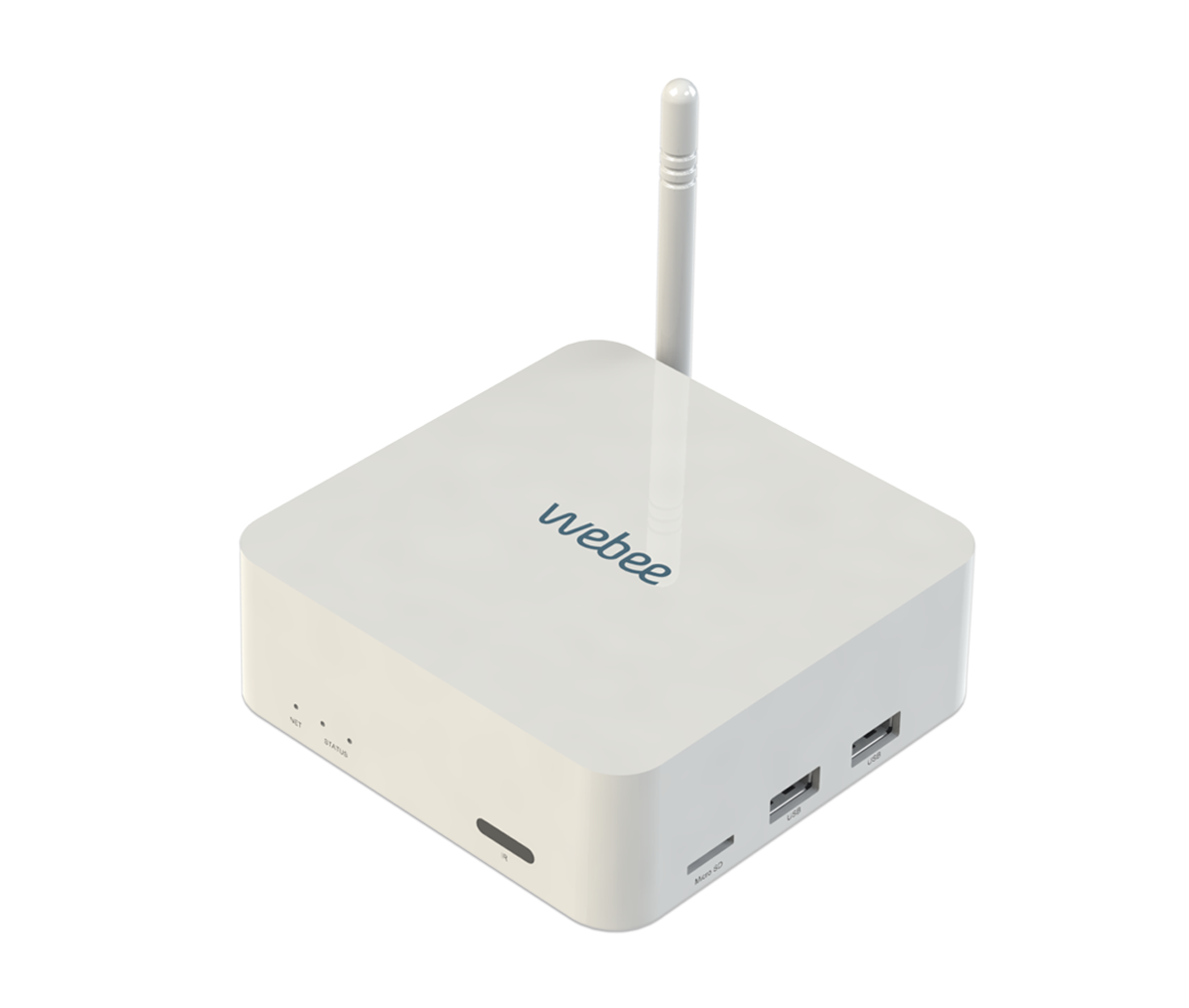
| Product Recognition | |
|---|
| Certification Number | ZC10-16075142 |
|---|
| Name | Smartee |
|---|
| Short Description | Webee is an intelligent smart home system with monitoring features that learns from user's behaviors to program itself, and integrates entertainment to the connected home experience turning the TV set into a smart TV. |
|---|
| Long Description | Webee system integrates with hundreds of compatible third-party devices that users can control and monitor from anywhere using Webee mobile app, desktop portal or TV dashboard as well as use locally without Internet connection. Users can receive real time power consumption notifications alerting of any changes in temperature, motion, luminosity, and more.
Using artificial intelligence and real-time data, the smart devices adapt the household conditions to the current environment. For example, by giving orders to the lamps to turn off when there is no movement in a room. Users can also create scenarios with related sequences of actions and rules by grouping specific tasks. For example, the "welcome home" scenario will automatically turn on entrance lights and adjust temperature levels when the front door is opened. These features can continue to work locally without Internet connection.
Security
Webee Home Monitoring system allows users to secure and monitor their home from anywhere. The Armed Away mode locks all doors and activate sensors and alarms to send alerts when there is unexpected activity while users are away from home. The Armed Stay mode ensure safety by sending notifications while users are inside. Home monitoring gives the TV a new function as the alerts will run on the TV while checking the security cameras, watching shows or running any application. Users can measure energy consumption and receive recommendations to save energy and money using the energy dashboard.
Entertainment
Webee Smart home hub is also an entertainment system that connects to the TV set to be used as Smart TV box integrating video functionality into the connected home experience. Users can download Android apps, access to full streaming and multimedia services such as Netflix, connect speakers like Sonos to the TV, play games, and more. |
|---|
| Brand | Webee |
|---|
| Product Identifier | SM2001 |
|---|
| OEM Version | HW: 1 FW: 1.01:01.00:01.00:01.00 |
|---|
| Hardware Platform | ZM5304 |
|---|
| Z-Wave Version | 6.51.06 |
|---|
| Library Type | CONTROLLER_STATIC |
|---|
| Device Type | Central Controller |
|---|
| Role Type | ROLE_TYPE_CONTROLLER_CENTRAL_STATIC |
|---|
| Manufacturer ID | 0x019F |
|---|
| Product Type ID | 0x0001 |
|---|
| Product ID | 0x0001 |
|---|
| User Icon | 0x0100 |
|---|
| Installer Icon | 0x0100 |
|---|
| Frequency Plans | US: 916.00MHz, 908.40MHz |
|---|
| Categories | All Controllers, Gateway Controller |
|---|
| Countries / Regions | United States of America |
|---|
| Controlled Command Classes | | Identifier | Name | Key | Version |
|---|
| COMMAND_CLASS_ASSOCIATION_GROUP_INFORMATION | Association Group Information V1 | 0x59 | 0 | | COMMAND_CLASS_NO_OPERATION | No Operation | 0x00 | 1 | | COMMAND_CLASS_DOOR_LOCK_V2 | Door Lock V2 | 0x62 | 2 | | COMMAND_CLASS_MULTI_CHANNEL_ASSOCIATION_V3 | Multi-Channel Association V3 | 0x8E | 3 | | COMMAND_CLASS_SWITCH_ALL | Switch All | 0x27 | 1 | | COMMAND_CLASS_BATTERY | Battery | 0x80 | 1 | | COMMAND_CLASS_SWITCH_BINARY | Switch Binary | 0x25 | 1 | | COMMAND_CLASS_BASIC | Basic | 0x20 | 1 | | COMMAND_CLASS_CRC_16_ENCAP | CRC16 Encapsulation | 0x56 | 1 | | COMMAND_CLASS_SECURITY | Security S0 | 0x98 | 1 | | COMMAND_CLASS_SENSOR_MULTILEVEL_V6 | Sensor Multilevel V6 | 0x31 | 6 | | COMMAND_CLASS_WAKE_UP_V2 | Wake Up V2 | 0x84 | 2 | | COMMAND_CLASS_BARRIER_OPERATOR | Barrier Operator | 0x66 | 1 | | COMMAND_CLASS_SWITCH_MULTILEVEL_V3 | Switch Multilevel V3 | 0x26 | 3 | | COMMAND_CLASS_ASSOCIATION_V2 | Association V2 | 0x85 | 2 | | COMMAND_CLASS_MULTI_CHANNEL_V4 | Multi-Channel V4 | 0x60 | 4 | | COMMAND_CLASS_MANUFACTURER_SPECIFIC_V2 | Manufacturer Specific V2 | 0x72 | 2 | | COMMAND_CLASS_NOTIFICATION_V4 | Notification V4 | 0x71 | 4 |
|
|---|
| Documents | |
|---|
| Features | | Feature | Values |
|---|
| Color | | | Firmware Updatable | | Value |
|---|
| Updatable by Manufacturer |
| | Sensors | | Value |
|---|
| Motion/No Motion (Binary) | | Air Temperature | | Luminance | | Moisture | | Humidity | | Open/Closed (Binary) | | Heat | | Freeze | | Ultraviolet Index | | Water Flow |
| | Communications Connections | | Value |
|---|
| Ethernet (Wired) | | Ethernet (Wireless/WiFi) | | Bluetooth | | USB (Universal Serial Bus) | | HDMI (High-Definition Multimedia Interface) |
| | Controller Supports Multiple Networks | |
|
|---|
| Association Groups | | Group Number | Maximum Nodes Supported | End Point ID | Description |
|---|
| 1 | 1 | 0 | Z-Wave Plus Lifeline |
|
|---|
| Texts | | ID | Description | Value |
|---|
| 24 | Controller Exclusion | 1- On the Home Screen menu of your Webee TV app, select Settings, then navigate to the Developer section to access the Z-Wave console.
2-Tap on “Remove Device” located on the right.
3- There will be a 20 seconds time period for you to run the commands indicated on your Z-Wave device’s manual to complete the remove operation. | | 6 | Additional Special Features | SETTING UP SPACES: CONTROL YOUR DEVICES ANYWHERE
Spaces are a way to group your devices and control them with your Smartee through your Webee app. You can create a Space following the Smartee set up wizard on your TV. To create your space using your mobile or web app check the following instructions
1- Download the Webee app from the App Store or Play Store. Or access the web portal at my.webeelife.com. Register and Log-in to your Webee account.
2- Create and configure your Space. Spaces allow you to group and control your devices with your Webee app.
3- Add your Smartee to your Space by entering your Smartee MAC address. Find it on a sticker in the back of your hub.
4- Access your Space and start adding devices.
ADDITIONAL FEATURES
- Voice Control
- Functions: Classify devices according to their function using tags like climate, security, and others.
- Rooms: Group and organize devices in different rooms and grant different accesses to each user.
- Scenes: Schedule devices to execute actions automatically at the same time. For example, create ""Away Scene"" to lock doors and turn off main lights when you leave for work.
- Butlers: Configure devices to trigger actions when an specific activity is detected, such as turning on lights during turn on lights during night time if motion is detected inside home. | | 23 | Controller Inclusion | 1- To add a Z-Wave device to Smartee, navigate to the main menu of your Webee TV, mobile or web app and select Devices.
2-Move the device closer to the hub for the pairing process and prepare the device to join the network (inclusion mode). See instructions on each device user manual.
3- Press the Search & Add devices button on the Smartee Webee app to open the network.
4- Smartee will automatically find and add the devices around.
Adding Devices using Z-wave console.
1- On the Home Screen menu of your Webee TV app, select Settings, then navigate to the Developer section to access the Z-Wave console.
2- Tap on “Add Device” on the right panel for normal power inclusion or“NW Inclusion” for Network Wide Inclusion.
2- Move the device closer to the hub for the pairing process and prepare the device to join the network (inclusion mode). See instructions on each device user manual.
3- After a new device is detected, it will appear on the left side panel.
4- If the device was successfully added to the Smartee, all the device's information will be at the center panel.
5-If the inclusion process fails, when selecting the device this message will appear: “The new device was not successfully added. Please, remove it and try again”. In this case follow the remove device instruction and try again. | | 3 | Learn Mode (adding another controller) | 1- To add a Z-Wave controller to Smartee, make sure all Z-Wave devices are removed from the Smartee first.
2- The Z-wave controller that will be added to Smartee must be put into inclusion mode. See controller’s manufacturer instructions.
3-Tab on Start Learn Mode on the Right panel of your Z-Wave console to add the controller. It can take some time to receive all the network information and load all the Z-Wave devices from the controller being added. At the end of this process all the devices added to the other controller will appear in the left panel. | | 5 | Factory Reset | Z-Wave Factory Reset
1- On the Home Screen menu of your Webee TV app, select Settings, then navigate to the Developer section to access the Z-Wave console
2- Select ""Factory Reset"". This will remove all Z-Wave devices from your Smartee.
Important: Note that this procedure will remove ALL Z-Wave devices from the controller.
Hub Factory Reset
1- To factory reset Smartee contact customer support at support@webeelife.com and request a MAC reset.
2- Only after MAC reset is processed, navigate to the Home Screen menu of your Webee TV app, select Settings, and navigate to the System section.
3- On the Left Panel select ""Backup & Reset"". Then on the Right Panel select ""Factory Data Reset"".
4- Tap on ""Reset device"" to complete the reset.
IMPORTANT: Do not reset your Smartee without previous consent of the Webee support team and only if the controller is inoperable. |
|
|---|
| Supports NWI | Yes |
|---|
| Supports Explorer Frames | Yes |
|---|