Product Recognition | |
|---|
Certification Number | ZC10-18025989 |
|---|
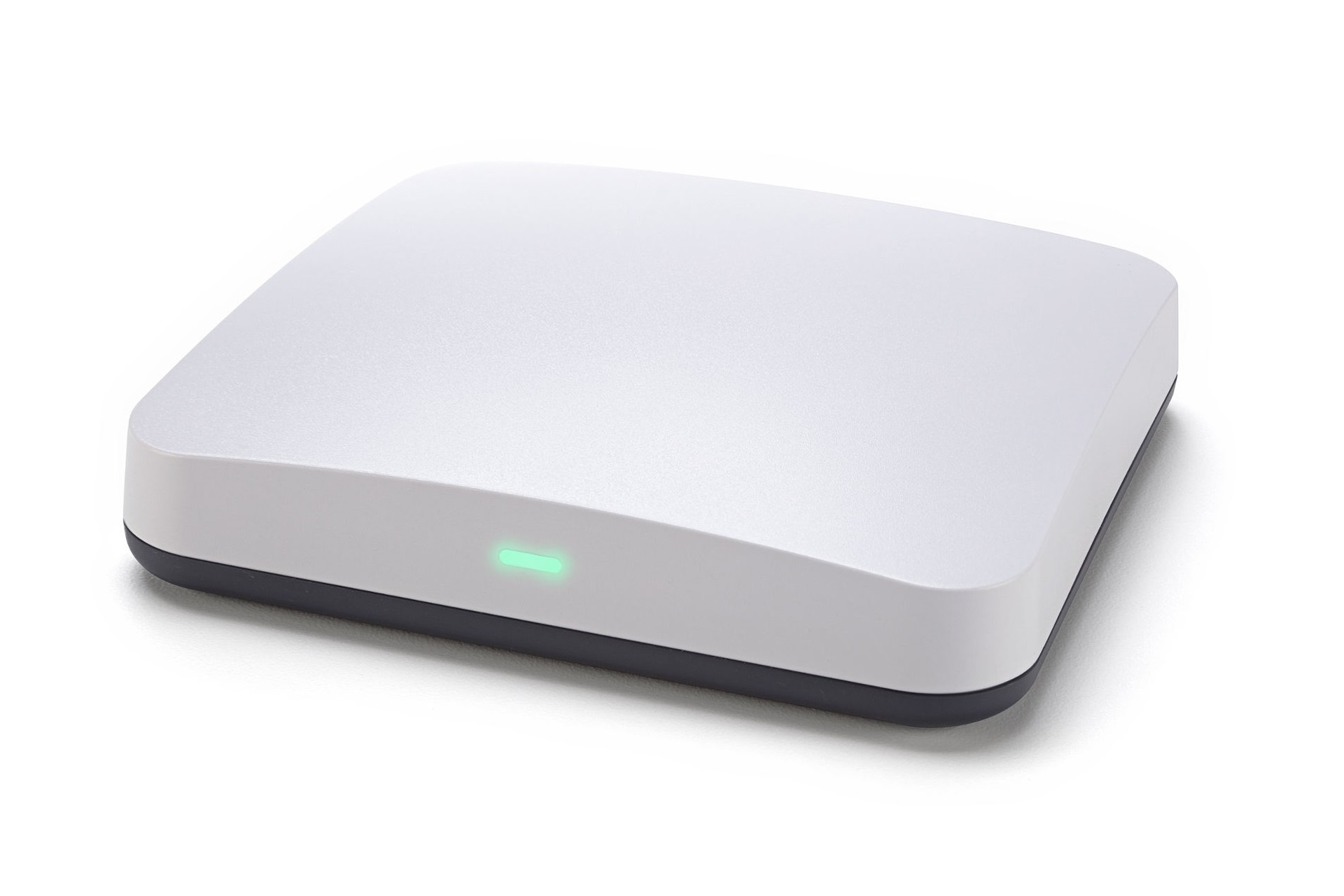
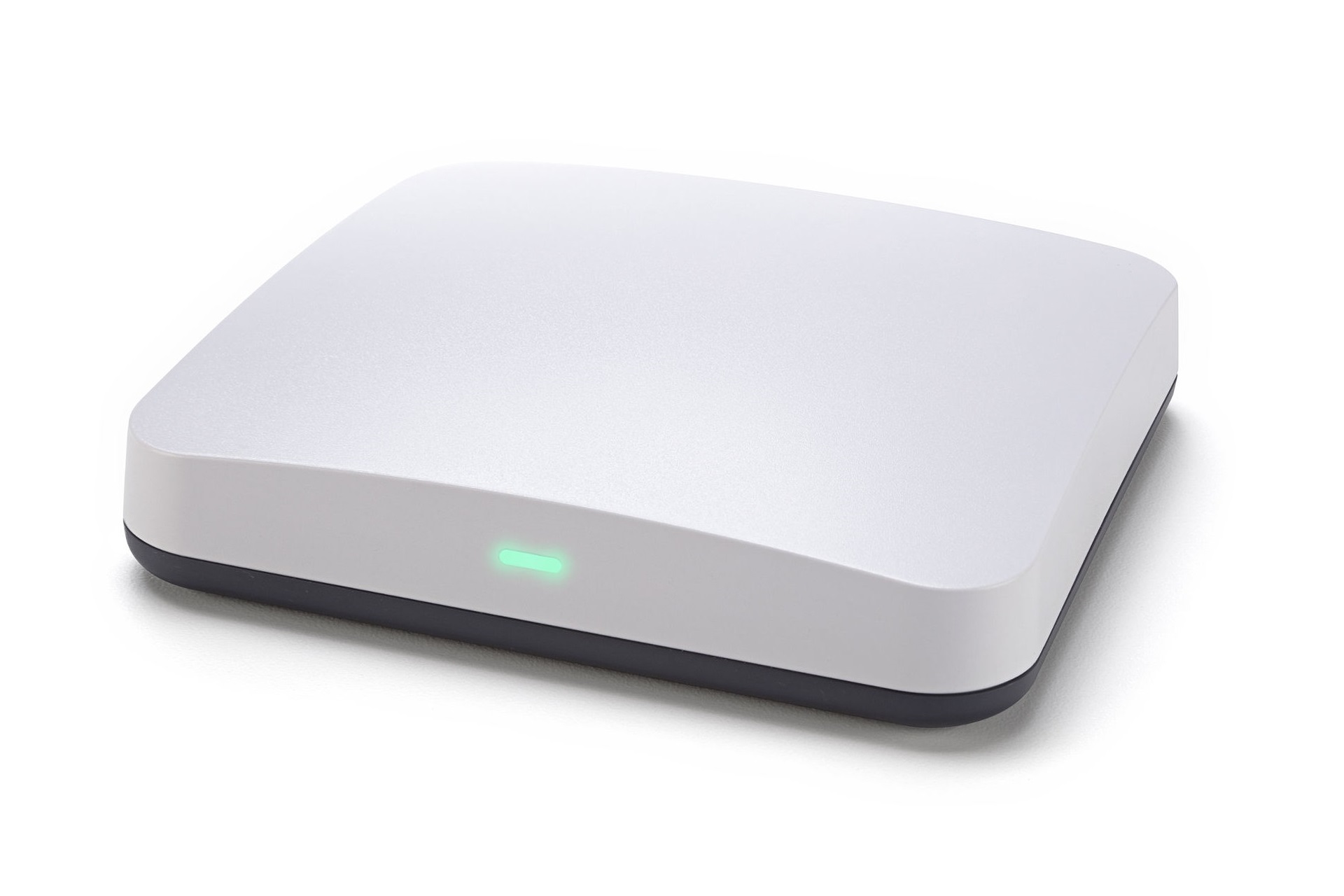
Name | Energy Bridge |
|---|
Short Description | The Energy Bridge is the most advanced home energy management gateway on the market, bridging the smart grid to the smart home. |
|---|
Long Description | The Powerley Energy Bridge is the first and only gateway to provide both real-time energy management and smart home automation. Through Powerley technology, the Energy Bridge maintains a constant connection to real-time energy usage data via either a smart meter or other energy metering device. Through this connection, users can see exactly how much energy their home, and every appliance within it, are using via the Powerley mobile app.
The Energy Bridge also serves as a smart home hub, providing users with control of their energy via control of the home through smart devices. Designed for ultimate flexibility, the Energy Bridge can connect to virtually any smart device providing a single-solution to control the entire smart home. |
|---|
Brand | Powerley |
|---|
Product Identifier | PWLY-274343- |
|---|
OEM Version | HW: 1 FW: 5.14:02.61:01.00:01.00 |
|---|
Hardware Platform | SD3503 |
|---|
Z-Wave Version | 6.81.00 |
|---|
Library Type | CONTROLLER_BRIDGE |
|---|
Device Type | Gateway |
|---|
Role Type | ROLE_TYPE_CONTROLLER_CENTRAL_STATIC |
|---|
Manufacturer ID | 0x028c |
|---|
Product Type ID | 0x00eb |
|---|
Product ID | 0xeb20 |
|---|
User Icon | 0x0500 |
|---|
Installer Icon | 0x0500 |
|---|
Frequency Plans | US: 916.00MHz, 908.40MHz |
|---|
Categories | All Controllers, Gateway Controller |
|---|
Countries / Regions | United States of America |
|---|
Supported Command Classes | Identifier | Name | Key | Version |
|---|
COMMAND_CLASS_POWERLEVEL | Powerlevel | 0x73 | 1 | COMMAND_CLASS_INCLUSION_CONTROLLER | Inclusion Controller | 0x74 | 1 | COMMAND_CLASS_APPLICATION_STATUS | Application Status | 0x22 | 1 | COMMAND_CLASS_CRC_16_ENCAP | CRC16 Encapsulation | 0x56 | 1 | COMMAND_CLASS_SECURITY | Security S0 | 0x98 | 1 | COMMAND_CLASS_TRANSPORT_SERVICE_V2 | Transport Service V2 | 0x55 | 2 | COMMAND_CLASS_VERSION_V2 | Version V2 | 0x86 | 2 | COMMAND_CLASS_DEVICE_RESET_LOCALLY | Device Reset Locally | 0x5A | 1 | COMMAND_CLASS_ZWAVEPLUS_INFO_V2 | Z-Wave Plus Info V2 | 0x5E | 2 | COMMAND_CLASS_ASSOCIATION_V2 | Association V2 | 0x85 | 2 | COMMAND_CLASS_ASSOCIATION_GRP_INFO_V3 | Association Group Information V3 | 0x59 | 3 | COMMAND_CLASS_SECURITY_2 | Security S2 | 0x9F | 1 | COMMAND_CLASS_SUPERVISION | Supervision | 0x6C | 1 |
|
|---|
Controlled Command Classes | Identifier | Name | Key | Version |
|---|
COMMAND_CLASS_SWITCH_BINARY_V2 | Switch Binary V2 | 0x25 | 2 | COMMAND_CLASS_NO_OPERATION | No Operation | 0x00 | 1 | COMMAND_CLASS_POWERLEVEL | Powerlevel | 0x73 | 1 | COMMAND_CLASS_THERMOSTAT_FAN_MODE_V4 | Thermostat Fan Mode V4 | 0x44 | 4 | COMMAND_CLASS_MULTI_CHANNEL_ASSOCIATION_V3 | Multi-Channel Association V3 | 0x8E | 3 | COMMAND_CLASS_BATTERY | Battery | 0x80 | 1 | COMMAND_CLASS_THERMOSTAT_OPERATING_STATE | Thermostat Operating State | 0x42 | 1 | COMMAND_CLASS_CONFIGURATION | Configuration | 0x70 | 1 | COMMAND_CLASS_CRC_16_ENCAP | CRC16 Encapsulation | 0x56 | 1 | COMMAND_CLASS_SECURITY | Security S0 | 0x98 | 1 | COMMAND_CLASS_THERMOSTAT_FAN_STATE_V2 | Thermostat Fan State V2 | 0x45 | 2 | COMMAND_CLASS_THERMOSTAT_MODE_V3 | Thermostat Mode V3 | 0x40 | 3 | COMMAND_CLASS_THERMOSTAT_SETPOINT_V3 | Thermostat Setpoint V3 | 0x43 | 3 | COMMAND_CLASS_VERSION_V2 | Version V2 | 0x86 | 2 | COMMAND_CLASS_WAKE_UP_V2 | Wake Up V2 | 0x84 | 2 | COMMAND_CLASS_ZIP_V2 | Z/IP V2 | 0x23 | 2 | COMMAND_CLASS_ZWAVEPLUS_INFO_V2 | Z-Wave Plus Info V2 | 0x5E | 2 | COMMAND_CLASS_SWITCH_MULTILEVEL_V3 | Switch Multilevel V3 | 0x26 | 3 | COMMAND_CLASS_ASSOCIATION_V2 | Association V2 | 0x85 | 2 | COMMAND_CLASS_METER_V3 | Meter V3 | 0x32 | 3 | COMMAND_CLASS_SENSOR_MULTILEVEL_V9 | Sensor Multilevel V9 | 0x31 | 9 | COMMAND_CLASS_MULTI_CHANNEL_V4 | Multi-Channel V4 | 0x60 | 4 | COMMAND_CLASS_BASIC_V2 | Basic V2 | 0x20 | 2 | COMMAND_CLASS_SECURITY_2 | Security S2 | 0x9F | 1 | COMMAND_CLASS_ZIP_GATEWAY | Z/IP Gateway | 0x5F | 1 | COMMAND_CLASS_MANUFACTURER_SPECIFIC_V2 | Manufacturer Specific V2 | 0x72 | 2 |
|
|---|
S2 Classes | S2_UNAUTHENTICATED, S2_AUTHENTICATED, S2_ACCESS_CONTROL |
|---|
Documents | Category | Description | File |
|---|
Manual_Primary_Lang | Product or Owner's Manual | |
|
|---|
Features | Feature | Values |
|---|
Communications Protocol | | Color | | Firmware Updatable | Value |
|---|
Updatable by Manufacturer |
| Gateway Has Preferred Partners | | Sensors | Value |
|---|
Motion/No Motion (Binary) | Air Temperature | Moisture | Humidity | Open/Closed (Binary) | Power | Voltage | Current | RF Signal Strength | Carbon Dioxide | Carbon Monoxide |
|
|
|---|
Association Groups | Group Number | Maximum Nodes Supported | End Point ID | Description |
|---|
1 | 1 | 0 | Z-Wave Plus Lifeline |
|
|---|
Texts | ID | Description | Value |
|---|
5 | Factory Reset | Launch the Powerley app. From the navigation menu, select My Devices (Device icon), select Energy Bridge. On the Energy Bridge tab, scroll to ""Z-Wave"", and select ""Reset Network"", and on the next screen, tap ""Begin Z-Wave Network Reset"". A warning will display alerting the user that this will reset the network and disconnect all devices and to only use in the event the network or device is no longer operable. The screen will then ask the user to confirm by typing ""RESET"" to complete the factory reset.
If this controller is the primary controller for your network, resetting it will result in the nodes in your network being orphaned and it will be necessary after the reset to exclude and re-include all of the nodes in the network. If this controller is being used as a secondary controller in the network, use this procedure to reset this controller only in the event that the network primary controller is missing or otherwise inoperable. | 23 | Controller Inclusion | Launch the Powerley app. From the navigation menu, select My Devices (Device icon), and select the Add Device icon (+). Select the Device Type from the list of device categories, and then choose either the specific device (if listed) or Generic Z-Wave device. On next screen, place Energy Bridge into Inclusion mode by hitting ""Begin Searching"" button on screen. | 24 | Controller Exclusion | Launch the Powerley app. From the navigation menu, select My Devices (Device icon), select the Device Type from the list of device categories, and choose the specific included device by hard pressing on the device icon. On the device page, select ""Remove"" in the upper right hand corner, and then select ""Exclude Device"". On the next screen, tap ""Begin Excluding"" to exclude the device.
Alternatively, visit My Devices, select Energy Bridge. On the Energy Bridge tab, scroll to ""Z-Wave"", and select ""Enter Exclusion Mode"", and on the pop up, tap ""Exclude"" | 3 | Learn Mode (adding another controller) | Launch the Trinity web app (service providers and network administrators only). Click the ""Learn Mode"" button.
A Network operation modal will appear telling of the pending operation.
Trinity will display the Energy Bridge's DSK for entry into the including controller's UI. The first five digits will be bold and highlighted.
An operation success or error message will be printed when the operation completes. This will also include diagnostic information.
Click the ""Close"" button after the operation has completed. |
|
|---|
Supports NWI | Yes |
|---|
Supports Explorer Frames | Yes |
|---|
Radio Range Z-Wave (m) | 40 |
|---|