| Product Recognition | |
|---|
| Certification Number | ZC14-26010572 |
|---|
| Name | HomeLink Smart Home Connector |
|---|
| Short Description | HomeLink RF-to-Z-Wave bridge |
|---|
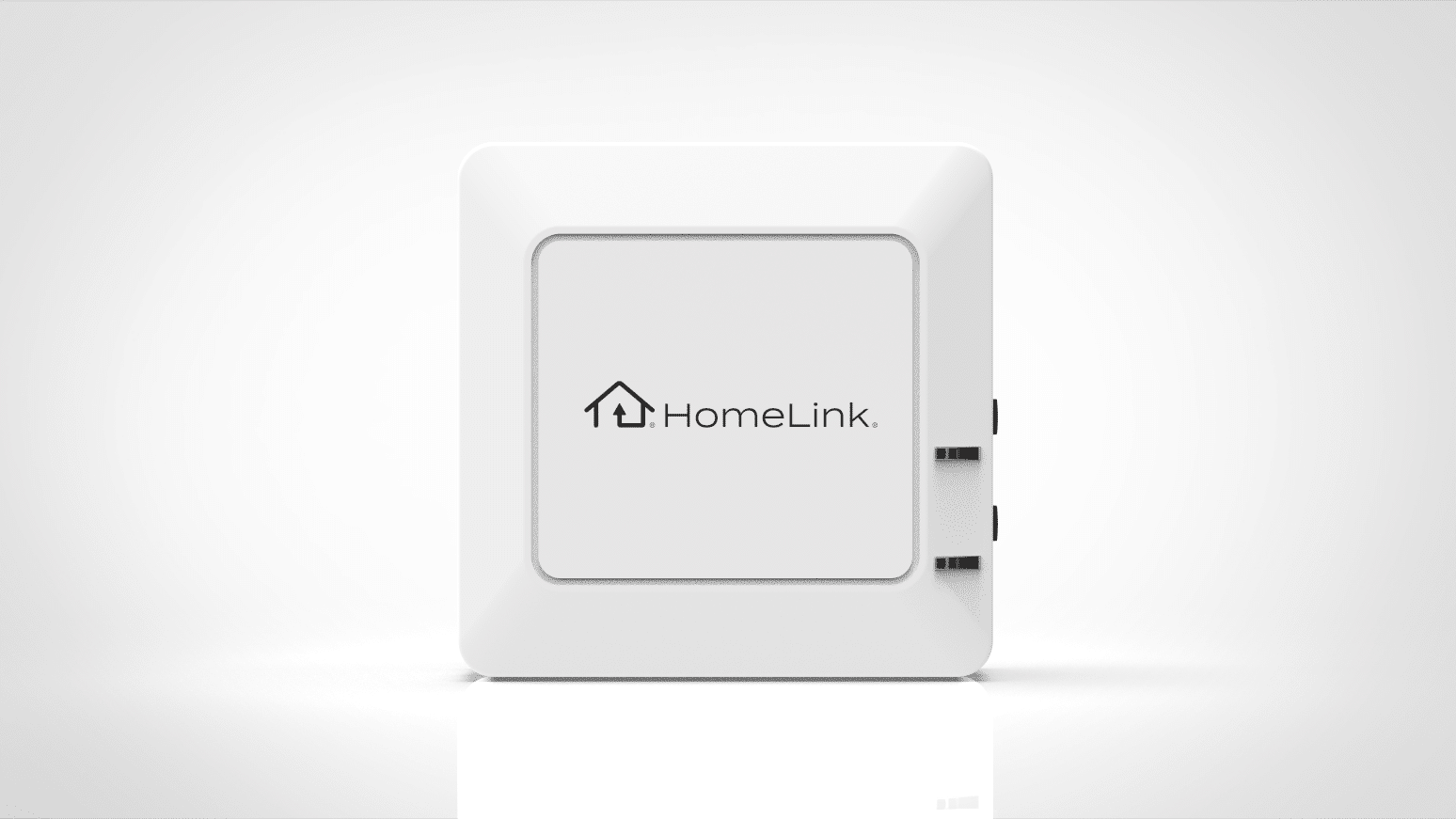
| Description | The HomeLink® Smart Home Connector™ lets you use HomeLink® buttons in your vehicle with a Z-Wave controller. You are able to program a button press to trigger a scene in your smart home system. The Connector is mounted on a standard US wall outlet. It comes with a separate handheld remote which is used to program your HomeLink® buttons but can also be used to directly trigger Z-Wave scenes. The Connector can program up to 6 different scenes. |
|---|
| Brand | HomeLink |
|---|
| Brand Owner | Gentex Corporation |
|---|
| Identifier | HLSHCA |
|---|
| Product Line | Connected |
|---|
| OEM Version | HW: 01 FW: 10.25:02.04:00.00 |
|---|
| Hardware Platform | EFR32ZG23B |
|---|
| Z-Wave Version | 7.23.1 |
|---|
| Library Type | END_NODE_ENHANCED_232 |
|---|
| Device Type | Central Scene DT |
|---|
| Role Type | ROLE_TYPE_END_NODE_ALWAYS_ON |
|---|
| Manufacturer ID | 0x0467 |
|---|
| Product Type ID | 0x0004 |
|---|
| Product ID | 0x0006 |
|---|
| User Icon | 0x1600 |
|---|
| Installer Icon | 0x1600 |
|---|
| Radio Range Z-Wave (m) | 75 |
|---|
| Radio Range Z-Wave LR (m) | 700 |
|---|
| Frequency Plans | US: 916.00MHz, 908.40MHz, US_LR: 912.00MHz, 920.00MHz |
|---|
| Categories | Network Devices |
|---|
| Countries / Regions | United States of America |
|---|
| Supported Command Classes | | Identifier | Name | Key | Version |
|---|
| COMMAND_CLASS_CENTRAL_SCENE_V3 | Central Scene V3 | 0x5B | 3 | | COMMAND_CLASS_CONFIGURATION_V4 | Configuration V4 | 0x70 | 4 | | COMMAND_CLASS_ASSOCIATION_V2 | Association V2 | 0x85 | 2 | | COMMAND_CLASS_ASSOCIATION_GRP_INFO_V3 | Association Group Information (AGI) V3 | 0x59 | 3 | | COMMAND_CLASS_DEVICE_RESET_LOCALLY | Device Reset Locally | 0x5A | 1 | | COMMAND_CLASS_FIRMWARE_UPDATE_MD_V5 | Firmware Update Meta Data V5 | 0x7A | 5 | | COMMAND_CLASS_INDICATOR_V3 | Indicator V3 | 0x87 | 3 | | COMMAND_CLASS_MANUFACTURER_SPECIFIC_V2 | Manufacturer Specific V2 | 0x72 | 2 | | COMMAND_CLASS_MULTI_CHANNEL_ASSOCIATION_V3 | Multi Channel Association V3 | 0x8E | 3 | | COMMAND_CLASS_VERSION_V3 | Version V3 | 0x86 | 3 | | COMMAND_CLASS_ZWAVEPLUS_INFO_V2 | Z-Wave Plus Info V2 | 0x5E | 2 | | COMMAND_CLASS_SECURITY | Security 0 | 0x98 | 1 | | COMMAND_CLASS_SECURITY_2 | Security 2 | 0x9F | 1 | | COMMAND_CLASS_SUPERVISION | Supervision | 0x6C | 1 | | COMMAND_CLASS_TRANSPORT_SERVICE_V2 | Transport Service V2 | 0x55 | 2 | | COMMAND_CLASS_POWERLEVEL | Powerlevel | 0x73 | 1 |
|
|---|
| S2 Classes | S2_AUTHENTICATED, S2_UNAUTHENTICATED |
|---|
| Documents | |
|---|
| Features | | Feature | Values |
|---|
| Firmware Updatable | | Value |
|---|
| Updatable by Consumer by RF |
| | Z-Wave Scene Type | |
|
|---|
| Association Groups | | Group Number | Maximum Nodes Supported | End Point ID | Group Name | Profile |
|---|
| 1 | 5 | 0 | Lifeline | 0x0001 | | 2 | 5 | 0 | Scene 1 | 0x2001 | | 3 | 5 | 0 | Scene 2 | 0x2002 | | 4 | 5 | 0 | Scene 3 | 0x2003 | | 5 | 5 | 0 | Scene 4 | 0x2004 | | 6 | 5 | 0 | Scene 5 | 0x2005 | | 7 | 5 | 0 | Scene 6 | 0x2006 |
|
|---|
| Configuration Parameters | | Parameter Number | Name | Description | Format | Size | Min Value | Max Value | Default Value | Read-only |
|---|
| 1 | Channel 1 | This parameter is used for the following in relation to Channel 1: put into learn mode [1], check whether a HomeLink car button is connected [2] or not [0], and clear connected buttons [3]. | 0 | 1 | 0 | 0 | 0x00 | | | 2 | Channel 2 | This parameter is used for the following in relation to Channel 2: put into learn mode [1], check whether a HomeLink car button is connected [2] or not [0], and clear connected buttons [3]. | 0 | 1 | 0 | 0 | 0x00 | | | 3 | Channel 3 | This parameter is used for the following in relation to Channel 3: put into learn mode [1], check whether a HomeLink car button is connected [2] or not [0], and clear connected buttons [3]. | 0 | 1 | 0 | 0 | 0x00 | | | 4 | Channel 4 | This parameter is used for the following in relation to Channel 4: put into learn mode [1], check whether a HomeLink car button is connected [2] or not [0], and clear connected buttons [3]. | 0 | 1 | 0 | 0 | 0x00 | | | 5 | Channel 5 | This parameter is used for the following in relation to Channel 5: put into learn mode [1], check whether a HomeLink car button is connected [2] or not [0], and clear connected buttons [3]. | 0 | 1 | 0 | 0 | 0x00 | | | 6 | Channel 6 | This parameter is used for the following in relation to Channel 6: put into learn mode [1], check whether a HomeLink car button is connected [2] or not [0], and clear connected buttons [3]. | 0 | 1 | 0 | 0 | 0x00 | | | 7 | PIC16 Serial Number | This parameter stores the PIC16 serial number. | 1 | 4 | 0 | 0 | 0x00000000 | Yes |
|
|---|
| Texts | | ID | Description | Value |
|---|
| 8 | Where to find S2 DSK on product | Will be located on the back of the product and also on the last page of the manual | | 1 | Classic Inclusion | Inclusion of the Connector into your Z-Wave network
This function is only available if the unit is not connected to a Z-Wave network, either because it is new, or because it has been removed from the network or factory reset.
If your system supports SmartStart, scan the QR Code on the product or this manual with your Z-Wave system controller and then plug in the device. No further action is required, it will be added automatically within 10-minutes.
For systems that do not support SmartStart, the unit will automatically go into Z-Wave inclusion mode when it is plugged in. If the unit has not been included via SmartStart within 1 minute of power on, it will enter classic Z-Wave inclusion mode.
While in inclusion mode, FUNCTION will blink blue. It will flash solid green when the Connector has been connected to the network. | | 2 | Classic Exclusion | First, set your Z-Wave controller to exclusion mode, sometimes this is found under an option to “remove a device.”
If you are an Alarm.com installer, use MobileTech and follow these steps:
a. Go to Equipment, then Z-Wave Devices
b. Expand the Z-Wave Actions drop down at the top of the screen
c. Press Delete Z-Wave Devices
d. Wait for the bolded message: “Checking for new devices on the network.”
Alternatively, to set your Qolsys panel to clear a device, follow these steps:
e. Press Settings in the swipe-down settings tray
f. Press Advanced Settings and enter an installer code (default is 1111)
g. Press Installation, then Devices and then Z-Wave Devices
h. Press Add Device and then Include
i. Press Clear Device
Once your Z-Wave controller is set to exclusion mode, continue by pressing and holding the FUNCTION button on the Connector until the light is yellow, then release.
The FUNCTION light will blink yellow when the Connector is waiting to be removed from the network. It will blink green when it has successfully been removed. It will then return to the inclusion mode, ready for adding to a Z-Wave network, indicated by the FUNCTION light blinking blue.
If the remove fails, the FUNCTION light will flash red for five seconds then return to normal state. Try the above steps again. If it is not successful after repeated attempts, you may need to perform a factory reset on the Connector to return it to inclusion mode. | | 5 | Factory Reset Procedure | Press and hold the FUNCTION button and CHANNEL button simultaneously until both lights blink red (for about 5-seconds), then release.
All programmed channels and Z-Wave network information will be erased – the device will restart in a factory state. A blinking blue FUNCTION light indicates it is ready to be included in a new Z-Wave network. | | 6 | Other Special Features | Interpreting Status Lights
FUNCTION Light
The multi-colored upper light on the front of the Connector.
• White and fade out – The Connector has powered on
• Blinking Blue – The Connector is in Z-Wave “inclusion” mode, ready to be added to your Z-Wave network
• Blinking Green for 3 seconds – A signal was received from the handheld remote or a HomeLink® button push
• Pulsing White Light – The Connector’s software is being automatically updated and should finish within a few minutes.
• While pressing & holding the function button
o Blue – Program a channel
o White – Remove channel programming
o Yellow – Remove from Z-Wave network
CHANNEL Light
The lower light on the front of the Connector, it is red when on.
• Blinking – Count the blinks to know what channel you’re working with |
|
|---|
| Supports NWI | Yes |
|---|
| Supports Explorer Frames | Yes |
|---|
| Supports SmartStart | Yes |
|---|