Product Recognition | |
|---|
Certification Number | ZC10-15100004 |
|---|
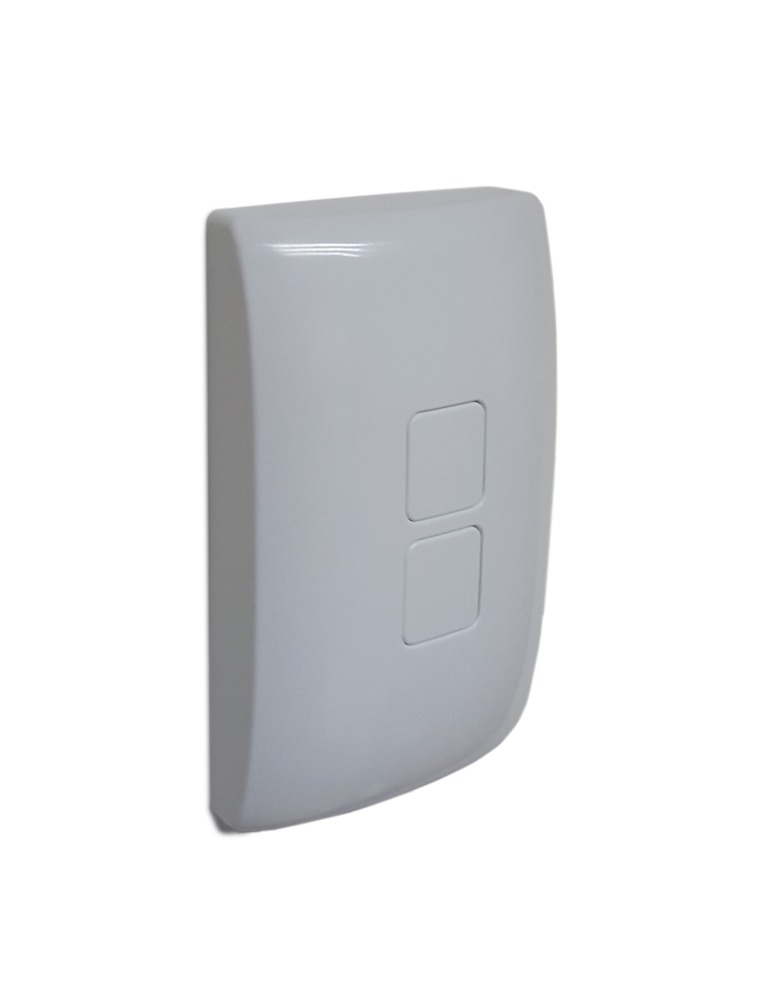
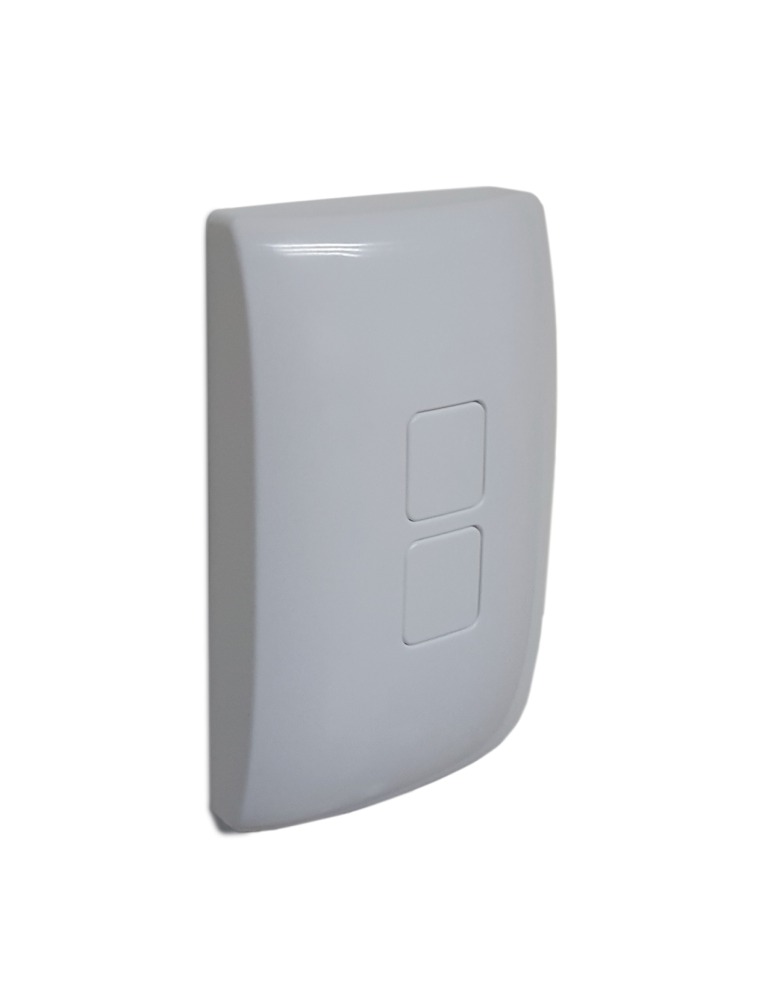
Name | Z-Wave Smart Switch Cover |
|---|
Short Description | Smart Switch Cover with Z-Wave radio. The ZSC can control the Z-Wave Smart LED Bulb as well as other Z-Wave light control devices |
|---|
Long Description | Smart Switch Cover with Z-Wave radio.
• Built-in Z-Wave radio - can control Z-Wave Light Bulb and switches/dimmers remotely and wirelessly
• Plug and play, simple setup. Fits over an existing wall switch.
• Manually turn on, off, dim your lights while keeping the smart light bulb always online in your home network
• Works with different types and brands of Z-Wave LED Light control devices
• Powered by Z-Wave® 500 Series module inside
• Manual reset capability
• Powered by 2 pieces of standard CR2032 Lithium Coin Cell with long battery life |
|---|
Brand | Domitech Products, LLC |
|---|
Product Identifier | ZSC |
|---|
OEM Version | HW: 255 |
|---|
Hardware Platform | ZM5202 |
|---|
Z-Wave Version | 6.51.06 |
|---|
Library Type | SLAVE_ENHANCED_232 |
|---|
Device Type | Wall Controller |
|---|
Role Type | ROLE_TYPE_SLAVE_PORTABLE |
|---|
Manufacturer ID | 0x020E |
|---|
Product Type ID | 0x5343 |
|---|
Product ID | 0x3132 |
|---|
Frequency Plans | US: 916.00MHz, 908.40MHz |
|---|
Categories | All Lighting Devices, Lighting Accessories |
|---|
Countries / Regions | United States of America |
|---|
Controlled Command Classes | Identifier | Name | Key | Version |
|---|
COMMAND_CLASS_BASIC | Basic | 0x20 | 1 | COMMAND_CLASS_CENTRAL_SCENE | Central Scene | 0x5B | 1 |
|
|---|
Documents | Category | Description | File |
|---|
Manual_Primary_Lang | Product or Owner's Manual | |
|
|---|
Association Groups | Group Number | Maximum Nodes Supported | End Point ID | Description |
|---|
1 | 1 | 0 | ZSC supports Group 1 for lifeline communication. Group 1 must be assigned the Node ID of the controller to which unsolicited notifications will be sent. The Z-Wave controller should set this association automatically after inclusion. Lifeline association only supports the “manual reset” event. Please refer to the instructions manual of your remote controller or gateway for detail procedures on how these function can be set. | 2 | 5 | 0 | ZSC supports Group 2 with up to five devices as assciation group.
Press and Release the top/bottom button, the devices in Group 2 will be turned ON/OFF.
Press and hold the top/bottom button, the devices in Group 2 will be dim up/down. | 3 | 5 | 0 | ZSC supports Group 3 with up to five devices as assciation group.
Press and Release the top/bottom button twice (double click), the devices in Group 3 will be turned ON/OFF.
Press the top/bottom button twice while holding down the top/bottom button in second press, the devices in Group 3 will be dim up/down. |
|
|---|
Configuration Parameters | Parameter Number | Name | Description | Format | Size | Min Value | Max Value | Default Value | Parameter Values |
|---|
4 | Reverse Button | User can set the value to be 1, the function of top/bottom button will be reversed. | 0 | 1 | 0 | 0 | 0 | From | To | Description |
|---|
0 | 1 | Reverse Button |
| 1 | Activation of Central Scene | The Valid Values can be set from 0 to 99. Each Valid Value can turn on two scenes. If the Valid Value is set to N, top button is assigned to control 2N+1 scene, and bottom button is assigned to control 2N+2 scene. For example, if the value is set as 4, Scene #7 will be activated when top button is pressed, Scene #8 will be activated when bottom button is pressed. | 0 | 1 | 0 | 0 | 0 | From | To | Description |
|---|
0 | 99 | ZSC control scene through central scene command class |
| 2 | Control mode | User can set the ZSC to control other devices or they issue various scene activation commands to a central controller. When Value = 0, ZSC can activate the Scene which is pre-set by Gateway, and then control the associated Smart Bulbs in either Group 2 or Group 3. When Value = 1, ZSC can only activate the Scene which is pre-set by Gateway. When Value = 2, ZSC can only control Smart Bulbs in Association Group 2 and Group 3. | 0 | 1 | 0 | 0 | 0 | From | To | Description |
|---|
0 | 2 | Issue varies scene activation commands to a central controller |
|
|
|---|
Texts | ID | Description | Value |
|---|
2 | Exclusion | 1. Place your network controller into Exclude mode by following the controller manufacturer’s instructions.
2. Press any button on the ZSC.
3. The LED will flash twice and ZSC exclusion is successful. | 1 | Inclusion | 1. Place your network controller into Inclusion mode by following the controller manufacturer’s instructions
2. Press any button on the ZSC
3. A green LED will flash twice to indicate that ZSC Inclusion is successful
Note: If Inclusion still fails after the 2nd attempt, you need to first manually RESET the ZSC before repeating the above steps. | 5 | Factory Reset | In an event that your primary controller is lost or otherwise inoperable, to reset or clear all network information, follow these steps:
Factory Reset: Press TOP button 5-times then press BOTTOM button 5-times within 5 seconds |
|
|---|
Supports NWI | Yes |
|---|
Supports Explorer Frames | Yes |
|---|
Radio Range Z-Wave (m) | 40 |
|---|