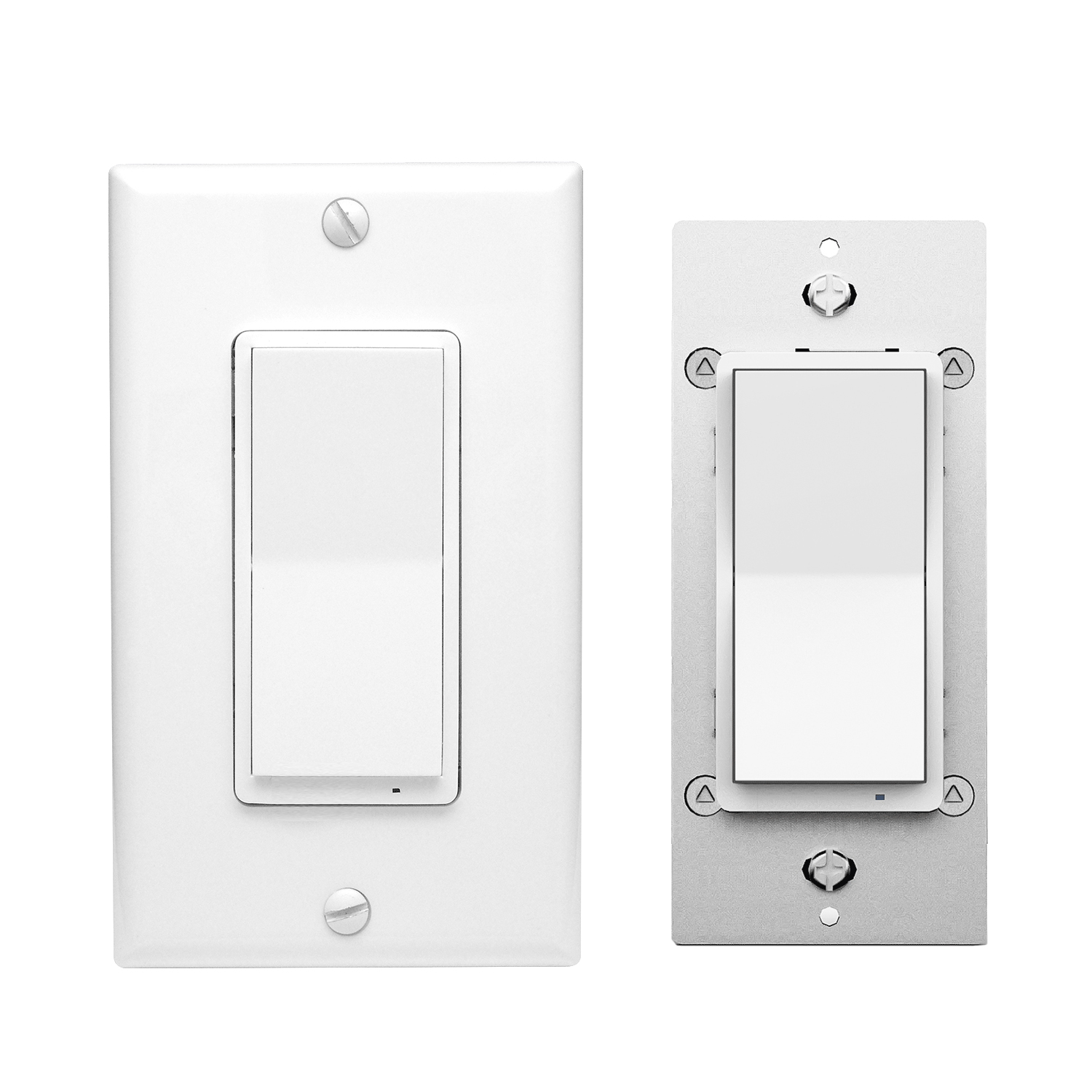
Product Recognition | |
|---|
Certification Number | ZC12-21040212 |
|---|
Name | Smart On/Off Switch |
|---|
Short Description | In-Wall Smart Switch design features a housing depth that is up to 20 percent smaller than the previous Z-Wave models. |
|---|
Long Description | In-Wall Smart Switch design features a housing depth that is up to 20 percent smaller than the previous Z-Wave models. 700 Series Z-Wave Plus On Off Wall Switch with Direct 3-Way Functionality (no add-on switch needed). |
|---|
Brand | Minoston |
|---|
Product Identifier | MS10ZS |
|---|
Product Line | Line A |
|---|
OEM Version | HW: 1 FW: 1.00 |
|---|
Hardware Platform | ZGM130 |
|---|
Z-Wave Version | 7.13.6 |
|---|
Library Type | SLAVE_ENHANCED_232 |
|---|
Device Type | Binary Switch |
|---|
Role Type | ROLE_TYPE_SLAVE_ALWAYS_ON |
|---|
Manufacturer ID | 0x0312 |
|---|
Product Type ID | 0xEE00 |
|---|
Product ID | 0xEE01 |
|---|
User Icon | 0x0704 |
|---|
Installer Icon | 0x0700 |
|---|
Frequency Plans | US: 916.00MHz, 908.40MHz |
|---|
Categories | All Lighting Devices, On/Off Switches/Devices, Lighting Accessories |
|---|
Countries / Regions | United States of America |
|---|
Supported Command Classes | Identifier | Name | Key | Version |
|---|
COMMAND_CLASS_CONFIGURATION_V4 | Configuration V4 | 0x70 | 4 | COMMAND_CLASS_SWITCH_BINARY_V2 | Switch Binary V2 | 0x25 | 2 | COMMAND_CLASS_POWERLEVEL | Powerlevel | 0x73 | 1 | COMMAND_CLASS_ASSOCIATION_V3 | Association V3 | | 0 | COMMAND_CLASS_MULTI_CHANNEL_ASSOCIATION_V3 | Multi-Channel Association V3 | 0x8E | 3 | COMMAND_CLASS_INDICATOR_V3 | Indicator V3 | 0x87 | 3 | COMMAND_CLASS_TRANSPORT_SERVICE_V2 | Transport Service V2 | 0x55 | 2 | COMMAND_CLASS_DEVICE_RESET_LOCALLY | Device Reset Locally | 0x5A | 1 | COMMAND_CLASS_ZWAVEPLUS_INFO_V2 | Z-Wave Plus Info V2 | 0x5E | 2 | COMMAND_CLASS_FIRMWARE_UPDATE_MD_V5 | Firmware Update Meta-Data V5 | 0x7A | 5 | COMMAND_CLASS_ASSOCIATION_GRP_INFO_V3 | Association Group Information V3 | 0x59 | 3 | COMMAND_CLASS_BASIC_V2 | Basic V2 | 0x20 | 2 | COMMAND_CLASS_SECURITY_2 | Security S2 | 0x9F | 1 | COMMAND_CLASS_MANUFACTURER_SPECIFIC | Manufacturer Specific | 0x72 | 1 | COMMAND_CLASS_VERSION_V3 | Version V3 | 0x86 | 3 | COMMAND_CLASS_CENTRAL_SCENE_V3 | Central Scene V3 | 0x5B | 3 | COMMAND_CLASS_SUPERVISION | Supervision | 0x6C | 1 |
|
|---|
S2 Classes | S2_UNAUTHENTICATED, S2_AUTHENTICATED |
|---|
Documents | Category | Description | File |
|---|
Manual_Primary_Lang | Product Manual | | Installer_Guide | Installation Guide | |
|
|---|
Features | Feature | Values |
|---|
Color | | Firmware Updatable | Value |
|---|
Updatable by Consumer by RF |
| Switch Type | |
|
|---|
Association Groups | Group Number | Maximum Nodes Supported | End Point ID | Group Name | Description |
|---|
1 | 1 | 0 | Lifeline | Z-Wave Lifeline | 3 | 5 | 0 | BASIC SET | Send BASIC SET Command | 2 | 5 | 0 | BASIC SET | Send BASIC SET Command |
|
|---|
Configuration Parameters | Parameter Number | Name | Description | Format | Size | Min Value | Max Value | Default Value | Parameter Values |
|---|
1 | KeyFunction | Parameter=1,Size=1, Value=0 Up Button: On Down Button: Off Value=1 Up Button: Off Down Button: On Value=2 Up Button: On/Off Down Button: On/Off | 2 | 1 | 0 | 2 | 0 | From | To | Description |
|---|
0 | 0 | Up Button ON,Down Button OFF | 1 | 1 | Up Button OFF,Down Button ON | 2 | 2 | Up Button ON/OFF,Down Button ON/OFF |
| 2 | LED Indicator | Parameter=2,Size=1 Value=0 On when Off and Off when On Value=1 On when On and Off when Off Value=2 Always Off Value=3 Always On | 2 | 1 | 0 | 3 | 0 | From | To | Description |
|---|
0 | 0 | On when Off and Off when On | 1 | 1 | On when On and Off when Off | 2 | 2 | Always OFF | 3 | 3 | Always ON |
| 3 | Auto Turn-Off Timer | Parameter=3,Size=4, Value=0 timer disabled (default); Values: 1 – 65535 (minutes); | 2 | 4 | 0 | 65535 | 0 | From | To | Description |
|---|
0 | 0 | timer disabled | 1 | 65535 | Auto Turn-Off Timer |
| 5 | Auto Turn-On Timer | Parameter=5,Size=1, Value=0 timer disabled (default); Values: 1 – 65535 (minutes); | 2 | 4 | 0 | 65535 | 0 | From | To | Description |
|---|
0 | 0 | timer disabled | 1 | 65535 | timer disabled |
| 8 | Restores state after power failure | Parameter=8,Size=1, Value=0 output off Value=1 output on Value=2 out put the state after power | 2 | 1 | 0 | 2 | 2 | From | To | Description |
|---|
0 | 0 | output off | 1 | 1 | Output ON | 2 | 2 | out put the state after power |
| 9 | Enable or Disable Scene | Parameter=9,Size=1, Value=0 disable Value=1 enable | 2 | 1 | 0 | 1 | 0 | From | To | Description |
|---|
0 | 0 | disable | 1 | 1 | enable |
| 11 | Enable or Disable OutPut control | Parameter=11,Size=1,Value=0 disable local button and External Switch control enable Z-Wave control Value=1 enable local button and External Switch control enable Z-Wave control Value = 2 disable local button and External Switch control | 2 | 1 | 0 | 2 | 1 | From | To | Description |
|---|
0 | 0 | disable local button and External Switch control | 1 | 1 | enable local button and External Switch control enable Z-Wave control | 2 | 2 | disable local button and External Switch control |
|
|
|---|
Texts | ID | Description | Value |
|---|
5 | Factory Reset Procedure | :Press and hold lower paddle for 10 seconds, then LED starts blinking, release paddle and within 2 seconds, click lower paddle 5 times
(Node:Please use this procedure only when the network primary controller is missing or otherwise inoperable.) | 8 | Where to find S2 DSK on product | The device is compatible with SmartStart
SmartStart enabled products can be added into a Z-Wave™ network by scanning the Z-Wave QR Code found on the top of the outlet or the back of the box with a controller providing SmartStart inclusion.No further action is required and the SmartStart product will be added automatically within 10 minutes of being switched on and in the network vicinity.
the QR code are sticked to the side of the case,DSK is included in the QR code.
The DSK code can be found on the DSK label which is attached on the packaging box. | 1 | Classic Inclusion | The device support two methods of inclusion,When using a Z-Wave Plus™ certified controller choose Network Wide Inclusion or SmartStart,
Network Wide Inclusion To A Z-Wave™ Network
1,Refer to your primary controller instructions to process the inclusion / exclusion setup procedure.
2,When prompted by your primary controller, click the Up or Down button three times in one second. | 2 | Classic Exclusion | The device support two methods of inclusion,When using a Z-Wave Plus™ certified controller choose Network Wide Inclusion or SmartStart,
Network Wide Inclusion To A Z-Wave™ Network
1,Refer to your primary controller instructions to process the inclusion / exclusion setup procedure.
2,When prompted by your primary controller, click the Up or Down button three times in one second. |
|
|---|
Supports NWI | Yes |
|---|
Supports Explorer Frames | Yes |
|---|
Supports SmartStart | Yes |
|---|
Radio Range Z-Wave (m) | 40 |
|---|